Sales Automation
•
CRM Migration Guide: How to Switch CRMs Without Losing Your Data
Yes — clean, map, test, and cut over with a 30‑day read‑only overlap to move contacts, deals and companies; rebuild automations after.

You can switch CRMs without losing core customer data if you clean records first, map fields before import, and move in the right order. For most small teams, the main risk is not the export tool - it is bad source data, broken associations, and poor cutover control.
I’d frame the move this way: core records usually transfer, workflows usually do not, and the safest path is a short migration plan with a read-only overlap. That is the part sales and ops teams need to get right.
I’d keep three points front and center:
Most small teams can finish in 1–2 weeks
Contacts, companies, deals, notes, and meetings usually move well
Workflows, permissions, and audit-style system logic usually need manual setup again
The article’s best takeaway is simple: cleanup and field mapping decide the outcome more than the import itself. It cites one estimate that 40% of CRM migrations hit data loss or corruption, and 70% of those cases trace back to weak cleanup before the move.
What I would remember from the guide:
Export in dependency order: Companies → Contacts → Deals → Activities/Notes
Keep source record IDs so you can check links after import
Run a small test import first: 50–100 records
Turn off destination automations before bulk import
Keep the old CRM in read-only mode for 30 days
I also think the article draws a useful line between portable data and platform-bound logic. CSV exports can usually move standard records from tools like Salesforce, HubSpot, Pipedrive, and Zoho, but email thread bodies, activity history, workflow rules, lead scoring, and permission models often need extra work or a rebuild.
On vendor fit, the piece argues that teams should switch when the CRM creates drag: low adoption, stale workflows, weak reporting, admin bottlenecks, or rising cost. It also notes a May 2026 stat that 78% of founders abandon their CRMs, often because the system is too hard to use or does not match the team’s process.
The K3X section changes the angle a bit. The point is not that migration data rules change - they do not - but that post-import setup may be shorter if the destination relies less on workflow builders. The article says K3X starts at $20/user/month, includes 1,000 AI credits, and is aimed at teams of 1–9 users, while also noting limits around native integrations, AI credit monitoring, and larger-company governance needs.
If I had to reduce the full article to one quote-ready answer, it would be this:
Yes - most teams can switch CRMs without losing customer data if they audit, clean, map, test, verify, and cut over in order. The data move is usually straightforward; the bigger issue is rebuilding system logic and keeping users out of both CRMs at the same time.
Bottom line: the article is strongest when it stays narrow and process-driven. It gives a clear migration path, calls out what will not transfer cleanly, and avoids treating CRM switching like a same-day import job.
How to Plan a Successful CRM Data Migration
TL;DR: Can You Switch CRMs Without Losing Your Data?
Yes. Most small teams with fewer than 5,000–10,000 records can switch to an AI-native CRM in 1–2 weeks without losing core customer data [2][10]. Contacts, companies, deals, custom fields, notes, call logs, and meetings usually transfer cleanly if you clean the data and map fields before import [1][2][4].
The usual sequence is simple: audit, clean, export, map, import, verify, rebuild, and cut over. Automation workflows and audit logs usually do not transfer and need to be rebuilt in the new CRM [8][10].
Most avoidable data loss happens during cleanup and field mapping, not during the import itself.
Next: which records export cleanly, which need extra care, and which never migrate as-is.
What Data Can You Take With You When You Switch CRMs?
Most core CRM records move without much trouble. Contacts, companies, deals, pipeline stages, and standard fields usually export to CSV and import into another major CRM, including Salesforce, HubSpot, Pipedrive, and Zoho [1][8].
What usually does not move over cleanly is the logic built inside the platform. Workflows, automations, and other system-level rules are tied to each CRM’s own setup, so they often need to be rebuilt by hand [8][13]. The practical job is to split your data into two groups: records you can export and records or rules you’ll need to recreate.
Which CRM Records Usually Export Cleanly?
Standard records are usually the simplest part of a CRM migration. Names, email addresses, phone numbers, company domains, mailing addresses, deal amounts, close dates, pipeline stages, and record owners all tend to export cleanly as CSV files and import into another modern CRM without much friction [1][8].
The catch is data quality. Between 10% and 25% of records usually contain duplicates, formatting issues, or missing values that can break imports or create cleanup work later [12]. That’s why data cleanup should happen before export, not after.
Which Records Need Extra Care During Migration?
Records with relationships need more planning. The safest order is Companies → Contacts → Deals → Activities/Notes because later records often depend on earlier ones being in place [4][8].
Notes, call logs, tasks, meetings, and email activity all rely on associations. A note may belong to a contact, and that contact may be tied to a deal. If you import these records in the wrong order, or leave out source record IDs, those links can fail [7][4][8]. A simple safeguard is to keep the original source record IDs in a temporary field so you can check broken associations after import [7][1].
Email history needs separate handling. In HubSpot, a standard CSV export does not include email thread bodies; those need the Communications module or the API [1][8].
For many teams, the simplest workaround is operational, not technical:
Connect the new CRM
That approach is often easier than trying to move full email history through flat-file exports.
What CRM Data Usually Cannot Be Migrated?
Some parts of a CRM are configuration, not portable data. Workflow automations, sequences, triggers, lead scoring rules, and custom permission sets usually cannot be exported and transferred between systems [8][13].
The same goes for user roles, IP restrictions, and routing rules. Those usually need manual setup in the new CRM [13]. Another common issue is timestamp behavior: record creation dates are often reset to the import date, which can distort historical reports and trend analysis [13].
Data Type | Migration Ease | Recommended Method |
|---|---|---|
Contacts / Companies | High | |
Deals / Pipelines | High | |
Notes / Tasks | Medium | |
Activity History | Medium–Low | |
Email Thread Bodies | Low | Re-sync directly from Gmail/Outlook [1] |
Workflows / Logic | None |
Once you know which records are portable, the export method depends on the source CRM.
How Do You Switch CRMs Without Losing Data?

CRM Migration Checklist: 6 Steps to Switch Without Losing Data
You switch CRMs without losing data by following the right order: clean the data, export it, map fields, run a test import, do the full import, then move the team over. The process itself is not hard, but the small mistakes are what cause data loss.
Export limits, field rules, and object links differ by CRM, so execution matters more than theory. The table below shows the usual timeline for a small team, the method used at each stage, and the failure points that show up most often.
Step | Expected Time (Small Team) | Method | Common Failure Mode |
|---|---|---|---|
1. Audit & Clean | Manual review / dedupe tools | Migrating duplicates or stale records | |
2. Export | Native CSV / API export | Missing activity logs or email bodies | |
3. Map Fields | Spreadsheet mapping workbook | Field type mismatches | |
4. Test Import | Small batch (50–100 records) | Broken record associations | |
5. Full Import & Rebuild | Bulk CSV / API + manual rebuild | Wrong record import order | |
6. Cutover | Read-only old CRM | Reps entering data in both CRMs |
Custom fields usually take the most time to map. That is where teams hit issues with dropdown values, IDs, date formats, and fields that look similar but do not behave the same way.
Steps 1–3: How to Audit, Export, and Map Your Data
Start with cleanup. Remove duplicates before export, using email address as the main key for contacts and normalized domain as the main key for companies [6].
Then export in dependency order. Pull Companies first, then Contacts, then Deals, then Activities and Notes so parent-child links have a better chance of staying intact on import [6][5][10].
For field mapping, use a simple spreadsheet with the old CRM field in one column and the target field in the next. Watch field types closely: mapping text into a dropdown or object ID field can fail outright or import in the wrong format [1][10]. Standardize all dates to ISO 8601 format (YYYY-MM-DD) and phone numbers to E.164 format (+1...) before you lock the import file [10].
Steps 4–6: How to Import, Rebuild, and Cut Over Safely
Always run a test import first. Import 50–100 records, then confirm that contact-to-company links, deal-to-contact associations, and custom field values came across correctly [2][5][10].
After that, compare record counts against the export file and spot-check at least 20 records at the field level. If those checks pass, move to the full import [2][5].
For the full import, use the same dependency order as the export. Turn off automations and workflows in the destination CRM before loading anything [6]. If you leave them on, bulk imports can fire duplicate alerts to reps or customers. Once the data is in place, rebuild pipelines and automations [8][13].
Do not treat cutover as a same-day switch. Keep the old CRM in read-only mode for at least 30 days after the move [2][8]. That gives the team a backstop for records that did not move cleanly and lowers the odds of conflicting entries across both systems [3].
Reconnect integrations in a set order so syncs restart cleanly: payment processors first, then email providers, then identity/auth tools, then marketing tools [1]. Redirect web forms and third-party integrations to the new CRM before the overlap period ends.
The next section breaks down export steps for Salesforce, HubSpot, Pipedrive, Zoho, monday.com, Close, and Attio.
How to Export Data From Major CRMs
Use these export paths after cleanup and field mapping. The goal is simple: get the data out in the least painful way, while avoiding the common issue that slows down import later.
CRM | Export Path | Migration Caveat |
|---|---|---|
Salesforce | Setup > Data > Export or Data Loader | Exports are scheduled; task/event history often requires Data Loader |
HubSpot | Settings > Account > Import & Export > Export | Email thread bodies are not included in CSV exports; activity logs may require the API |
Pipedrive | Tools > Export data | Activities are exported separately from deals |
Zoho CRM | Module list views or Backup feature | Clean picklists and duplicates before export |
monday.com | Board > Export to Excel | Full-account exports require admin access |
Close | API / JSON | Useful for history, but harder to map than CSV |
Attio | Lists / Properties | Activity timelines need careful mapping |
How to Export From Salesforce and HubSpot
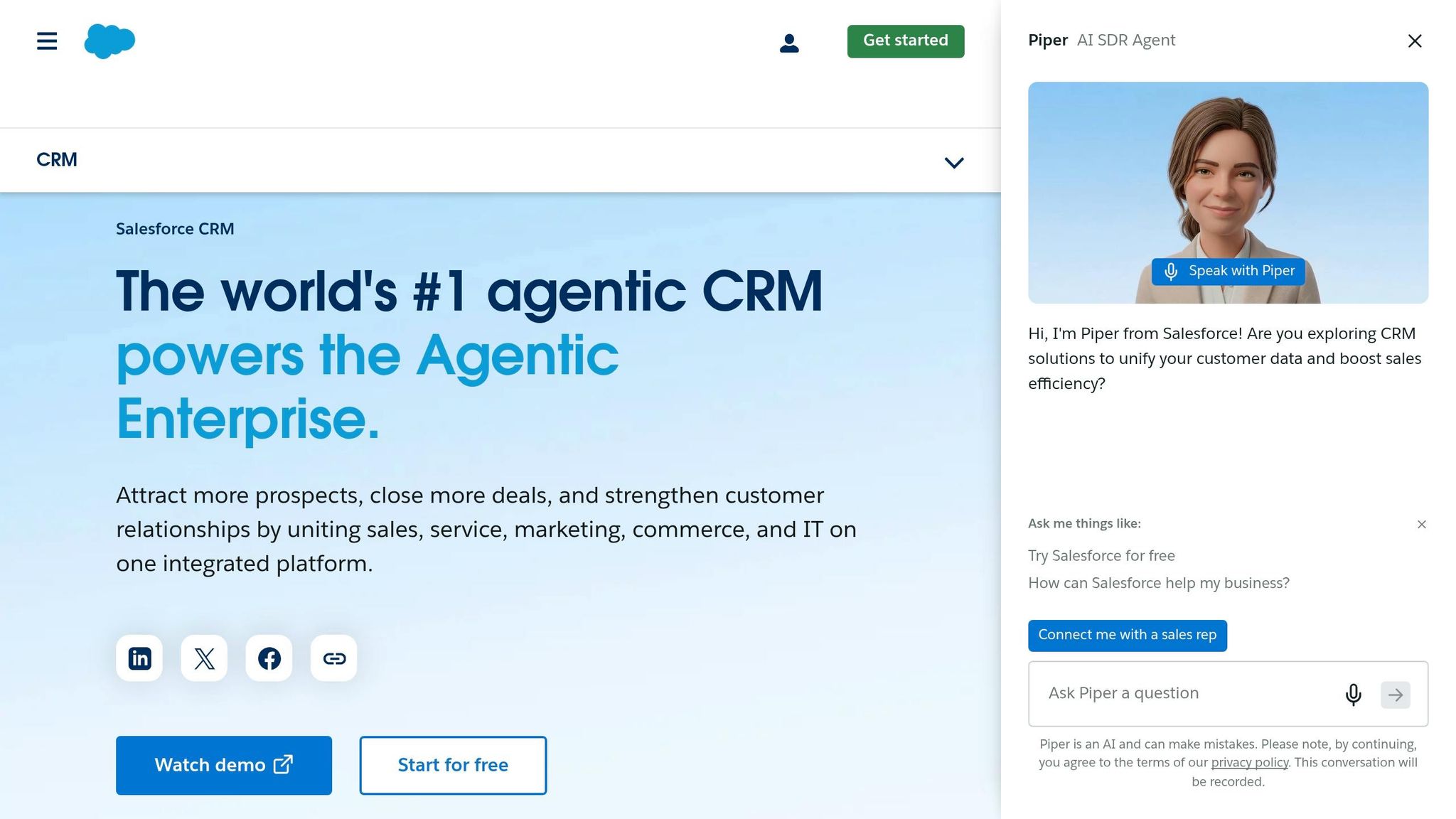
Salesforce gives you two main paths. Use Setup > Data > Export for standard records, and use Data Loader for large data sets or custom objects.
Salesforce exports are scheduled, so timing matters. Export Accounts, Contacts, and Opportunities with their original IDs so you can match records after import. If activity history does not come through, plan for an API pull or a later resync.
HubSpot exports sit under Settings > Account > Import & Export > Export. You can also export from individual object list views.
Contacts, companies, deals, and tickets usually come out cleanly. The catch is that CSV exports do not include email thread bodies, and activity logs beyond basic notes need the API.
How to Export From Pipedrive and Zoho CRM

Pipedrive exports People, Organizations, Deals, Activities, and Notes as separate files under Tools > Export data. That split matters, because activities need to be matched back to the right deals or other parent records after import.
Zoho CRM exports from module list views or the Backup feature. Before you pull files, align picklist values with the target CRM, since mismatched values often cause import errors.
How to Export From monday.com, Close, and Attio
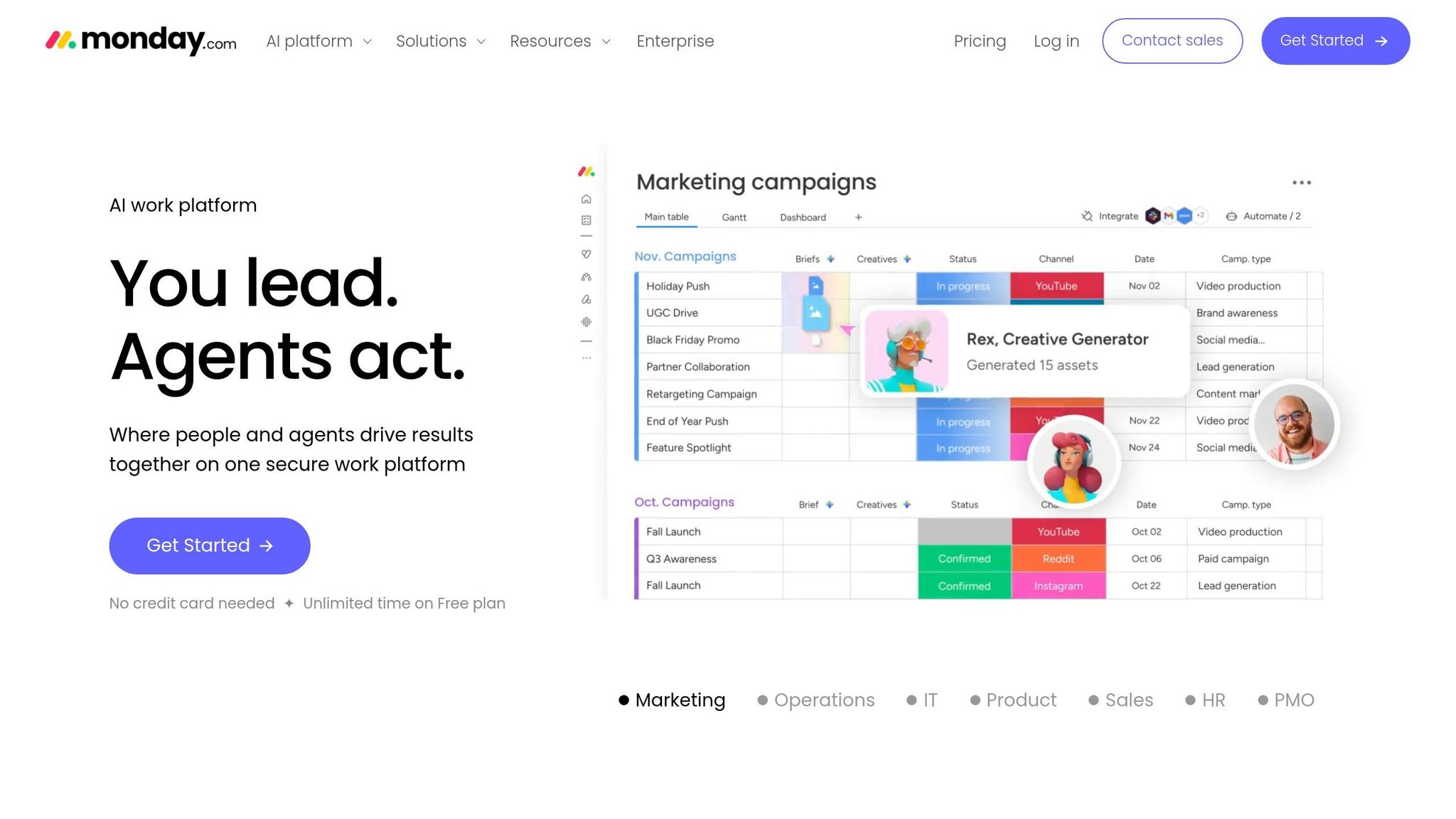
monday.com exports at the board level to Excel. If you need a full-account export, you need admin access, and the board-based structure usually means extra field mapping when moving into a standard CRM.
Close exports history such as emails, calls, and SMS through API and JSON. That helps when you want to keep more record history, but it takes more work to map than a flat CSV.
Attio exports contacts, companies, lists, notes, and properties. Activity timelines need close attention so history stays linked to the correct source records.
Once you know what each CRM can export, the next question is whether switching is worth the effort.
When Should You Switch CRMs Instead of Staying Put?
Switch when the CRM adds friction instead of removing it. If reps avoid the system, reports can’t be trusted, or admins spend more time fixing the tool than using it, staying put usually costs more than moving.
A CRM should help sales teams move deals, keep data clean, and show what’s happening in the pipeline. When it stops doing those basic jobs, the issue is no longer preference. It’s an operating problem.
Clear Signs It Is Time to Migrate
The clearest sign is low adoption. Research from May 2026 found that 78% of founders abandon their CRMs, often because the platform is too complex or does not match how the team works [5]. If reps keep a separate spreadsheet, the CRM has already failed at its most basic task.
Stale automations are another red flag. Old workflows that still run, sequences no one watches, and triggers firing without an owner all point to a system that has drifted out of sync with the business [5]. That drift creates noise, bad handoffs, and missed follow-up.
Needing admin help for small changes is another sign the tool no longer fits. If renaming a pipeline stage or mapping a custom field means opening a support ticket, the CRM is slowing down routine sales work [7][13]. For lean revenue teams, that delay adds up fast.
Cost also matters, but only in context. Salesforce Enterprise starts at $175 per seat per month, Pipedrive Lite at $14, and K3X at $20. Price alone does not decide the issue. The key question is whether the current CRM helps the team sell or just gives them another system to manage.
These signals matter because they show the CRM is blocking revenue work rather than supporting it.
Signal | What It Looks Like | Common in |
|---|---|---|
Low adoption | Reps use a parallel spreadsheet alongside the CRM | Salesforce, HubSpot |
Stale automations | Old workflows running with no owner | HubSpot, Zoho, Salesforce |
Requires admin help | Stage changes require technical help or a support ticket | Salesforce Enterprise |
Reporting gaps | Answers require manual spreadsheet reconciliation | monday.com, Pipedrive (basic plans) |
Rising TCO | Costs climb without added value | Salesforce, HubSpot |
Integration silos | Key tools are not first-class integrations | Zoho, Close |
The harder call is often not technical. It is deciding whether the team is staying because the CRM fits, or because moving feels risky.
Sunk-Cost Traps That Keep Teams Stuck
Teams often stay with the wrong CRM because they fear making a bad move, not because the current system still works well. That fear is common, especially after months or years of setup work.
Another trap is over-investment in broken workflows. Teams sometimes rebuild the same weak process in a new system just because they already spent time configuring it. That just moves the mess from one platform to another [6].
Larger platforms can also feel safer because they are well known. But a bigger tool is not always a better match for the way a company sells [9][8]. For example, a simple outbound team may not need the overhead of a complex enterprise setup.
Sometimes staying is still the right choice. If the team started using the current CRM less than 90 days ago, the problem may be onboarding and habit change rather than platform fit [1]. If the company is in a fundraising sprint or near quarter-end, the short-term dip that comes with cutover may cost more than the switch is worth at that moment [1].
Ownership also matters. If no one inside the company owns the move, it is better to wait until there is a clear migration lead and a defined data model [6][13].
When the real issue is workflow upkeep, a prompt-driven CRM changes what migration actually requires.
How a Prompt-Driven CRM Changes the Migration Process
A prompt-driven CRM changes what you rebuild after import, not how you move the data itself. Contacts, companies, deals, and activities still need to be exported, mapped, and checked, but the automation rebuild can drop off the migration plan.
How K3X Differs From Workflow-Heavy CRMs
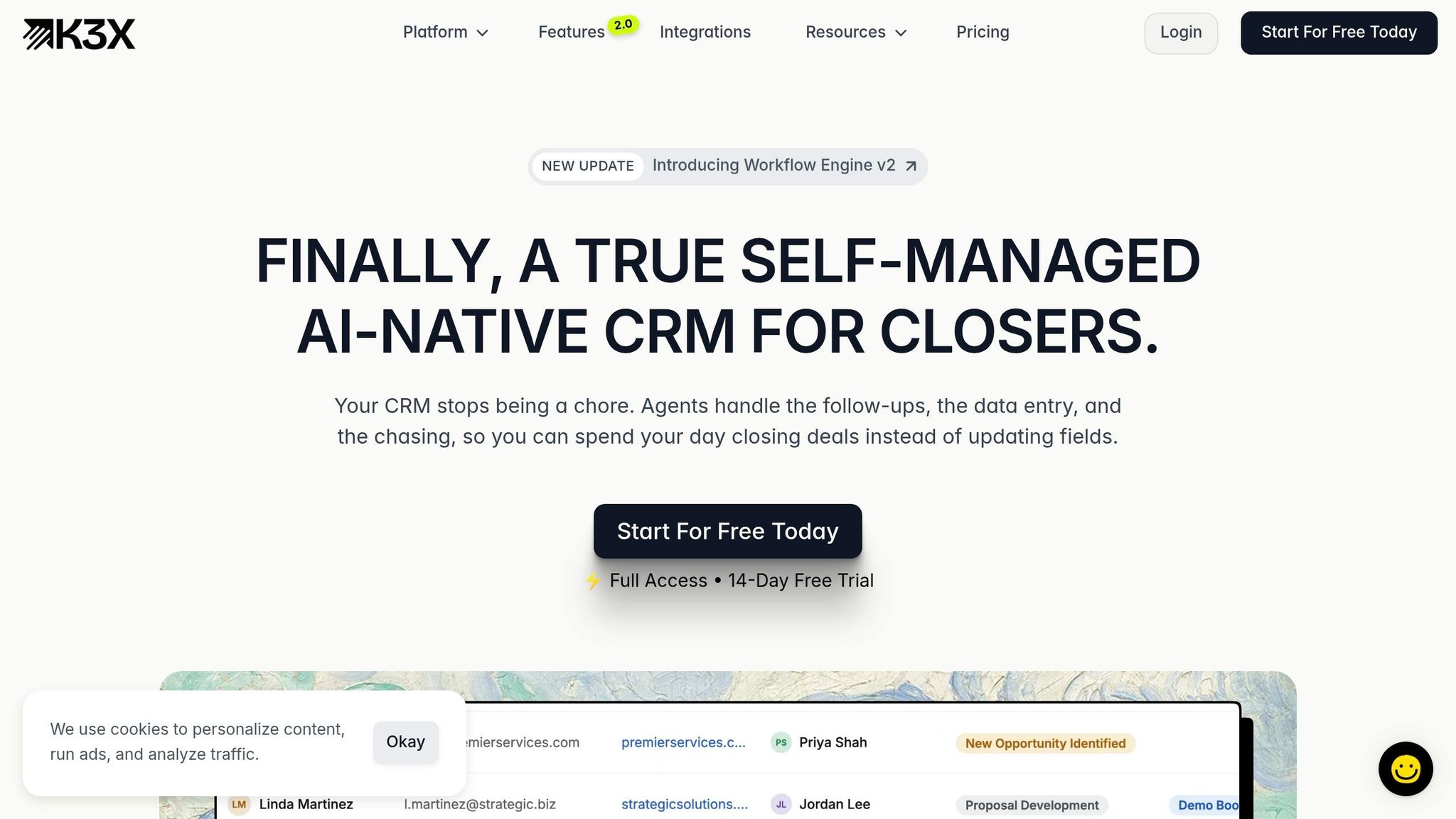
For teams moving to K3X, record transfer is still standard. The big difference comes after import: legacy CRMs store automation as system-specific logic, so workflows, sequences, and triggers usually have to be rebuilt in the new platform [8].
That matters because the hard part of many CRM moves is not the contact upload. It's the hours spent recreating automation step by step.
K3X is an AI-native CRM built for teams of 1–9 people. Users describe the result they want in plain English - for example, follow up with every inbound lead within 5 minutes until they book or decline - and K3X's AI agents carry that out across email, SMS, and calls. There is no workflow layer to rebuild, so the migration checklist changes even though the data import process does not.
Feature | Legacy CRMs (Salesforce, HubSpot, Pipedrive, Zoho, monday.com, Close, Attio) | K3X |
|---|---|---|
Automation method | Manual workflow builders, sequences, and triggers | Plain-language outcome prompts |
Automation portability | Non-portable; must be rebuilt from scratch | Restated as a new prompt |
Setup time after migration | 2–8 weeks [8] | Under 1 hour |
Execution channels | Rule-based sequences | AI agents across email, SMS, and calls |
Target team size | Scales from small teams to 100+ seat enterprises | Optimized for 1–9 people |
What Changes During Migration When the Destination CRM Is K3X
The import order stays the same, but the post-import work is lighter. Teams still need to check record counts against the source CRM, reconnect forms, and restore core integrations.
Field mapping also still matters. K3X's AI agents depend on clean attributes such as Deal Value and Lead Source, so those fields need to land in the right places during import.
What drops out is the workflow rebuild phase. Instead of documenting trigger trees and rebuilding them one rule at a time, teams write one sentence for each outcome they want and enter it as a prompt.
For small teams moving fewer than 10,000 contacts, the import usually takes 1.5–2.5 hours of active time [1]. After that, setup is limited compared with systems that depend on workflow builders.
K3X Pricing, Fit, and Limitations for July 2026 Buyers
K3X pricing is $20 per seat/month. That includes 1,000 AI credits, unlimited integrations, a built-in power dialer, and a 14-day free trial with no long-term contracts.
On price, K3X matches HubSpot Starter and Zoho CRM Standard at $20 per seat/month. It is higher than Pipedrive Lite at $14 per seat/month.
The tradeoffs are straightforward. K3X is a newer product with a smaller native integration catalog than Salesforce or HubSpot, and teams need to watch AI credit usage to avoid interruptions.
It is not designed for enterprises that need 100+ seats or deep governance controls. For small teams that do not want workflow builders, that may be fine. For larger companies with strict admin, approval, and control needs, it is likely the wrong fit. For teams in K3X's target range, the migration is mostly a data move.
Conclusion: The Safest Way to Switch CRMs
The safest way to switch CRMs is simple: data loss can be avoided if you clean, map, verify, and cut over in the right order. The sequence matters more than anything else.
Clean duplicate records before export. Then import data in dependency order, and check associations after the import to make sure records still connect the way they should.
Use a 1–2 week validation overlap so teams can compare the new CRM against the old one during live use. After that, keep the old CRM in read-only mode for 30 days before you decommission it.
Once the data move is handled, the next issue is how much work your team will need to do to rebuild workflows. Moving into Salesforce or HubSpot often means recreating automation logic that does not carry over during migration. Moving into K3X works differently: users describe the outcome in plain English, and AI agents handle execution across email, SMS, and calls.
The tradeoff is straightforward. K3X is a newer product, so its native integration catalog is smaller than larger vendors, AI credit use needs to be watched, and K3X pricing starts at $20 per seat/month for teams of 1–9 users, rather than large companies that need 100+ seats or deep admin governance.
FAQs
How long does CRM migration take?
For small teams with simple data, CRM migration usually takes 1 to 2 weeks. For most small-to-mid-sized businesses, expect 2 to 4 weeks. Larger or more complex setups often take 4 to 8 weeks or more.
The actual data import may take only a few hours. Most of the timeline goes to planning, cleaning data, mapping fields, and rebuilding integrations and workflows.
Can I migrate emails and activity history?
Yes, but it’s usually more complex than moving contacts or deals. CSV exports often don’t keep activity history in a clean, usable way, so emails, notes, and call logs need extra handling.
Move core records by CSV. For email threads, disconnect the old CRM, connect the new one to Gmail or Outlook, and let the new system backfill history from the mailbox directly. For notes and call logs, export separate CSV files and include the parent record IDs so those links stay in place.
Should I clean data before or after migrating?
Clean your data before you migrate it. A new CRM won’t fix duplicates, bad records, or messy formatting - it will just move those problems into the new system.
Do the cleanup after you export the data, but before you map fields and run the final import. That step cuts out useless records and helps you avoid launching a system your team doesn’t trust.
What CRM data cannot be migrated?
Automations, workflows, and reporting logic usually do not transfer during a CRM migration. Each CRM handles those rules in its own way, so teams often have to rebuild them by hand.
Email thread bodies also tend to export poorly, which creates gaps in activity history. By contrast, core records like contacts and deals usually move through CSV import without much trouble. The catch is in the details: custom field labels and complex relationship logic can break if they are not mapped field by field before import.