
The Evolution of AI Agents
I’d start with one sales task, clean contact data, and a workflow that requires human approval. My first choice would be activity logging or follow-up drafting - not predictive scoring, which depends on past deal data.
I’d test my current CRM before switching, then compare K3X, Salesforce, HubSpot, or another tool on completed work, setup time, and cost. Using the article’s 10-record pilot, I’d measure total time - including review and corrections - and keep the workflow only if it saves time without reducing accuracy. My day-one target would be <u>10 minutes saved for one rep</u>, the pilot goal cited in the article.[1]
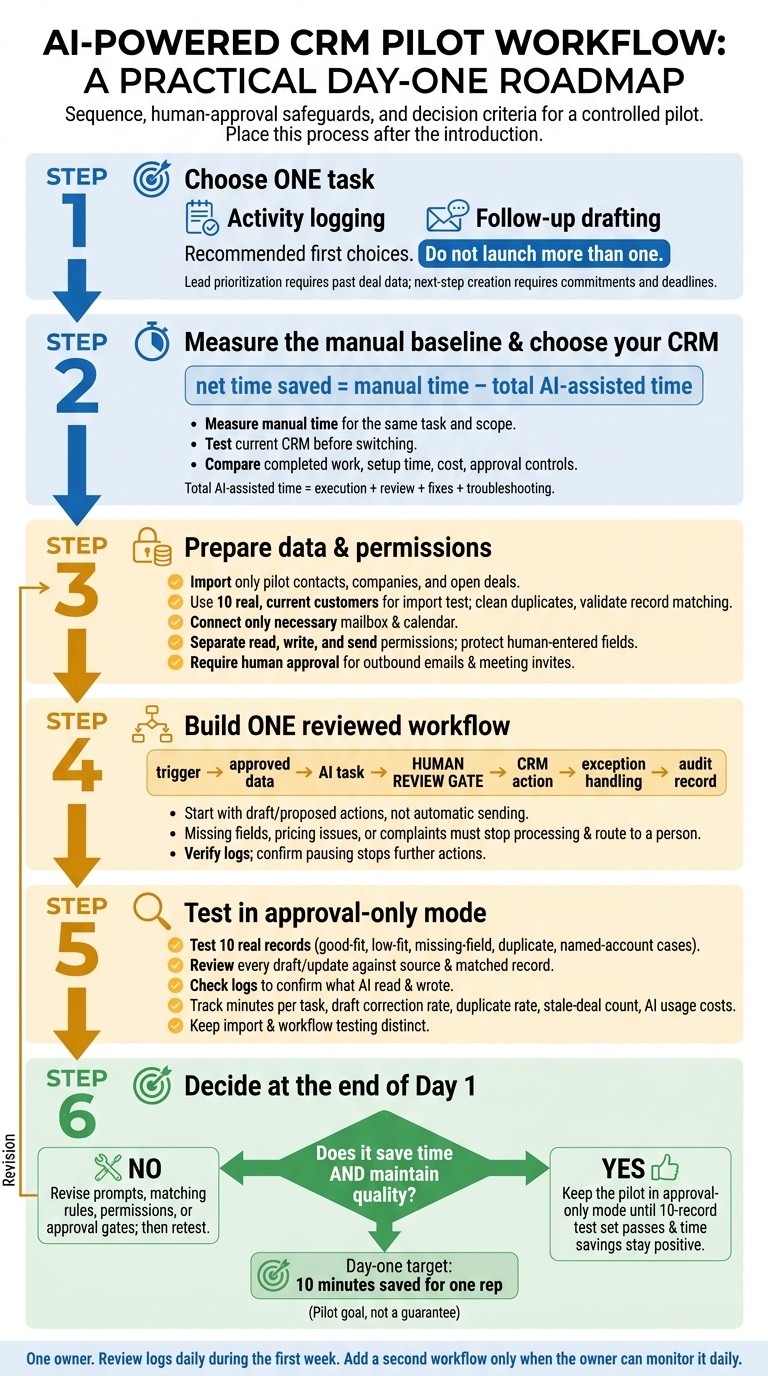
AI CRM Setup: Your Day-One Pilot
How to Build a Custom CRM with AI & No Code (Softr tutorial)
Choose Your First Sales Task to Automate
After connecting contacts and email, test one repeated, low-risk task that a rep can check quickly. Start with activity logging to keep records clean or follow-up drafting to reduce the time spent preparing messages.[1]
Choose a task your source data can support. Drafts need recent conversation context; next-step creation needs commitments and deadlines. When details are missing, the AI should flag the gap rather than invent an action. Lead prioritization needs enough closed-deal history to support a reliable ranking.[1][6]
Set a Baseline and Success Metric
Measure how long the task takes manually before automating it. For activity logging, start when the rep opens the source email or notes and stop when the CRM entry is saved. For follow-up drafting, measure until the message is ready to send.
Use net time saved = manual time − total AI-assisted time as your day-one metric. Include execution, review, fixes, and troubleshooting in the AI-assisted total. Check that each output matches its source, belongs to the correct contact, and contains no invented commitments. Time saved upfront doesn't help if reps must repair records later.[2][8] Use this baseline to compare CRM options on actual task completion.
For a K3X pilot, define the workflow before configuring it. Record the task, trigger, input, output, and approval requirements, including what the AI can read and write. Apply the same rules when evaluating Salesforce, HubSpot, or Pipedrive: allow drafts rather than auto-send, and keep manual fields under human review.[2][8]
Keep the scope the same when comparing manual and AI-assisted results. Use the workflow brief to compare how quickly K3X and the other CRMs can run the same task and how much setup each requires.
Compare K3X With Other CRMs
Compare CRMs by how fast they can run your defined task, meet your success metric, and support approval controls. Start with the platform that needs the least setup for your first workflow - your existing CRM may be faster than switching.
Compare AI Features and Setup Requirements
K3X combines prompt-to-action agents, built-in prospecting, and visual workflows, reducing the need for separate prospecting and CRM products. You’ll still need to configure the workflow and review its actions.
Platform | AI approach and setup | What blocks a same-day launch |
|---|---|---|
K3X | Prompt-to-action agents, built-in prospecting, and visual workflows | Connector availability, credit requirements, and approval configuration |
Salesforce | Agentforce and Einstein Lead Scoring; a good fit for existing Salesforce teams[6] | Native agents typically take 1–3 days to deploy[7] |
HubSpot | Breeze assistance and predictive scoring within existing workflows[6] | Predictive scoring typically needs about 30 days of data to begin[6] |
Scoring is usually more useful after 6+ months of historical data[6] | ||
Prediction setup and tuning can take 2–4 weeks[6] | ||
No-code AI agents for qualification and prospecting, with Human Approval[2][10] | Native agents typically take 1–3 days to deploy[7] | |
Verify current AI features and approval controls before including it in the pilot | Depends on the selected workflow | |
Research and Classify attributes, plus MCP access[8] | Schema-first setup usually takes days to weeks[8] |
These blockers apply to the listed capabilities, not every starter workflow. Before connecting live data, confirm feature availability, eligible plans, and approval controls. If two tools fit your workflow, compare setup time and AI usage costs to break the tie.
Compare Plan Prices and AI Usage Costs
Only K3X pricing is listed here. Verify current pricing for the other platforms before buying, including eligible-plan costs and AI usage charges for Salesforce, HubSpot, Pipedrive, Zoho CRM, monday.com, Close, and Attio.
Platform | USD price and billing | AI usage and additional costs |
|---|---|---|
K3X | $399/month for the whole team; unlimited seats; cancel anytime | 400,000 monthly credits; top-ups start at $99 for 100,000 credits |
K3X credits cover AI actions, contact reveals, calls, and texts. Monthly credits reset, while top-ups roll over as long as the plan stays active. If credits run out, the CRM stays live, but credit-based actions pause.
Check K3X’s pricing page for larger packs; don’t calculate their prices from the starting pack. For the pilot, weigh cost alongside workflow fit and the tools you already use.
Match the CRM to Your Workflow and Existing Tools
Choose K3X when prospecting and execution need to happen in one workflow. Favor an established platform when existing integrations, customization, marketing, or communication tools matter more than changing the interface.
Test the exact connector before committing. K3X’s advertised rollout of 3,000+ integrations doesn’t mean every connector is available today. Before allowing customer-facing execution, confirm that your workflow can save a draft, require approval, and record its actions.
Once you choose the CRM, connect contacts, email, and permissions before building the first workflow.
Prepare Contacts, Email, and Permissions
Load only the pilot data and restrict access before building the workflow. Keep your existing CRM running until you validate record matching.
Import only pilot contacts, companies, and open deals. Remove duplicates, map required fields, and define create, update, and skip rules before importing.
Connect the Data and Channels You Need
Test the import with 10 real, current customers.[3] Use company domains to match records and remove duplicates during import.[2]
Map spreadsheet columns to approved CRM fields. Put anything that doesn’t map cleanly in Notes rather than creating new fields.[3] Budget for contact-detail reveals, and validate record matching before retiring legacy systems.
After checking the import, connect only the mailbox and calendar needed for the pilot. For Google Workspace or Microsoft 365, confirm mailbox ownership, administrator authorization, and calendar access.[11]
Use the rep’s mailbox - not a bulk-sending domain - to protect deliverability. Enable throttling and stop-on-reply.[11]
Set Separate Read, Write, and Send Permissions
Limit the AI sales agent’s access to pilot records. Store summaries or scores in separate fields so they don’t overwrite human-entered values.[8]
Require human approval for outbound emails and meeting invites until the workflow proves reliable.[2] Before allowing it to send anything, verify that it can fail closed: stop actions when a required check fails.
Before enabling execution, confirm that the CRM logs sources, approvals, failures, and decision logic.[2][5] Test a duplicate record and a missing required field, then verify that pausing or disconnecting the workflow stops all further actions.[2][5] If the CRM cannot enforce that boundary, keep the first workflow approval-only.
Build Your First AI Workflow
Build one reviewed workflow using the baseline you measured earlier, with contacts, email, and permissions already in place. Start with activity logging or follow-up drafting to save time today.
Define seven parts: trigger, approved data, AI task, human review gate, CRM action, exception handling, and audit record.[1][2]
Turn a Prompt Into a Reviewed Workflow
In K3X, use a prompt to propose the workflow, then review it before applying any changes. Start with this instruction:
“Don’t apply anything yet. When a meeting is recorded, summarize approved notes and draft a follow-up using approved messaging templates. Do not send messages or change deal stages.”
Limit the context to the matched contact, approved notes, and approved messaging templates. Ask to review the proposed workflow before applying it.[2][3]
Check the actual triggers, actions, logic, and approval controls - not just the generated explanation. Require rep approval before any send action. Missing fields, pricing negotiations, or complaints should stop processing and route to a person.[2][5][12]
Before launch, test edge cases, including duplicate records, in simulation mode. Use run history or activity logs to understand why an AI result succeeded or failed.[2][5][12]
K3X supports a same-day pilot by starting from a prompt and keeping review and permissions within the workflow. Salesforce, HubSpot, and Pipedrive are better suited to processes that are already standardized or more complex.[2][3][6][8] Apply the same review requirements when choosing a starter workflow below.
Compare 4 Starter Workflows
Activity logging cuts typing, while follow-up drafting reduces preparation time. Next-step creation helps prevent stage drift by ensuring every open deal has an active owner and due date.[1][9]
Choose one workflow for day 1. Do not launch more than one.
Workflow | Trigger | Allowed AI action | Required review | Success measure |
|---|---|---|---|---|
Activity logging | Call or meeting completed | Summarize approved notes and extract next steps on the matched record | Rep checks record matching and summary accuracy | Net time saved; record accuracy |
Follow-up drafting | Meeting ends | Draft using notes and approved messaging; no sending | Rep verifies claims and approves any send action | Net time saved; draft accuracy |
Lead prioritization | New lead entry or updated engagement | Score fit using documented ICP rules and engagement criteria | Manager checks rankings against a manual ranking | Ranking agreement; net time saved |
Next-step creation | Buyer-action trigger or stage change | Propose a task with an owner and due date | Owner confirms the commitment and timing | Follow-up coverage; task accuracy |
Test and Measure Your First Run
Keep the workflow in approval-only mode and test it with 10 real records: good-fit, low-fit, missing-field, duplicate, and named-account records. A complete record should return the expected result. Low-fit leads should rank lower based on your scoring criteria, missing fields should go to human review, duplicates should be flagged or merged, and named accounts should go to the account owner.[2][3]
Compare the matched record, owner, stage history, and last activity date with the source information. This ensures the AI is accurately scheduling follow-ups based on real-time engagement. Check run history and activity logs to confirm what the AI read and wrote, then use the results to document time saved and data quality.[2][5]
Track Time Saved, Quality, and Usage
Compare the first run with your manual baseline. Track minutes per task, including review and correction time, along with draft correction rate, duplicate rate, and stale-deal count.[2][5]
Review transcripts and logs daily during the first week, and rewrite the prompt in plain language if needed. Keep approval-only mode on until the 10-record test set passes and time savings stay positive.[2][5]
Use Your Same-Day Launch Checklist
Launch your selected workflow - activity logging, follow-up drafting, prioritize sales workflows, or next-step creation - in approval-only mode with one owner.
Before Launch
Complete these checks in your selected CRM. Compare K3X, Salesforce, and other tools only on the workflow you plan to launch.
Confirm pilot contacts are clean and deduplicated.[1][5][12][14]
Separate read and write access, and protect rep-owned fields.[2][5][8][12][14]
Once these checks are complete, run a small test batch.
During the First Run
Review every draft or update, check the linked record and logs, and pause anything incorrect.[2][3][12] Then compare the results with your manual baseline.
At the End of Day 1
Keep the pilot only if it saves time and maintains quality. Compare total time, including review, with your manual baseline, and check completion, accuracy, missed follow-up tasks, and AI costs.[2][5][13]
If the pilot falls short, revise prompts, matching rules, permissions, or approval gates.[2][5][13] Add a second workflow only when the owner can monitor it daily.
FAQs
How can I protect customer data in an AI CRM?
Use role-based permissions to control which fields AI can access or edit. Require human approval for customer-facing actions, and keep activity and run logs so you can review actions and stop or adjust agents.
Before connecting tools, clean, normalize, and deduplicate your data. Keep agent-written fields separate from user-edited fields to prevent overwrites. Use admin credentials to authenticate, and map fields carefully to approved schemas. [1][2][3][4][5]
When can I safely reduce human review?
Reduce human review only after testing in actual use confirms that AI consistently meets your team’s accuracy standards [1][2]. Until then, require human review of pricing language, meeting invites, and outbound emails [1].
Start with small, low-risk items, such as saved views, before approving complex automations [2]. Keep audit logs and pause controls in place at all times so your team can monitor performance and intervene if AI outputs drift [1].
How do I know my pilot is ready to scale?
Scale once your core workflows are tested and your data is clean and consistent. For predictive models such as lead scoring, have a few hundred closed opportunities with consistent stage definitions.
Before expanding the rollout, check for steady adoption, ideally above 50%, with no workarounds or drop in usage. Confirm measurable improvements in pipeline velocity or time spent on manual entry against your manual baseline. Your team should also be ready for rollout-related process changes and have a feedback loop to address friction from the pilot.