
The Evolution of AI Agents
Your CRM can be empty after setup because creating the workspace does not import contacts or enable record creation, unlike an AI-native CRM designed to automate these flows. I first check whether records are missing or hidden, then test the import or connection before loading more data.
I start with 10–20 test rows and check which records were created, updated, skipped, or rejected, or ask your CRM for a status report.[6] In HubSpot, I review Connected Apps → Sync health; in Salesforce, I check integration-user permissions and duplicate rules.[1][5] My rule is simple: <u>a connected account is not proof that records were saved</u>.
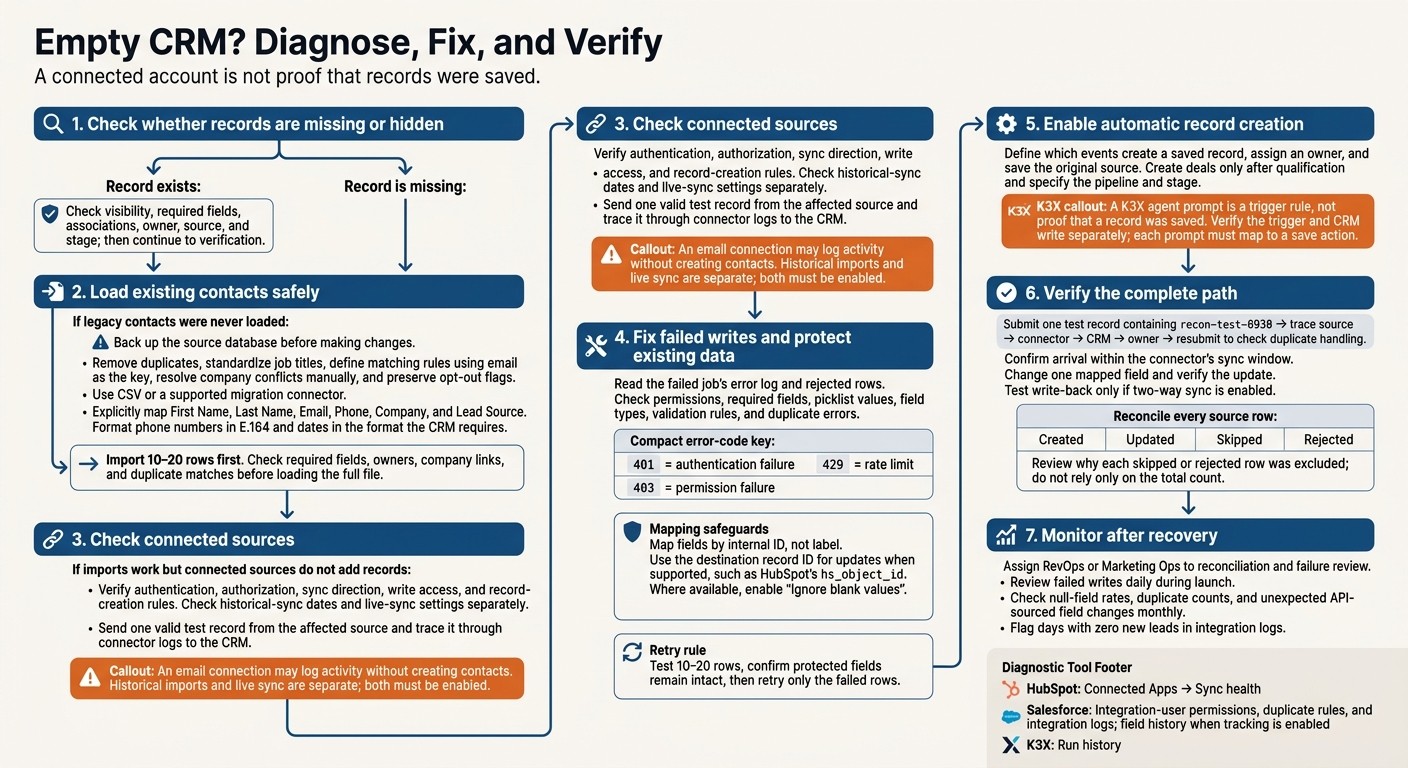
Empty CRM? Diagnose, Fix, and Verify
How to Bulk Import data into Hubspot CRM & Fix Mapping Errors
Import Existing Contacts into Your CRM
If your CRM is empty because legacy contacts were never loaded, export those contacts as a CSV and import them through CSV or a supported migration connector [10][6]. Most CRMs support both options; API-based migrations usually require more setup [10].
Back up the source database before making changes [6]. Remove duplicate records, standardize job titles, and define matching rules using email as the key. Resolve company conflicts manually and preserve opt-out flags [2][6].
Map First Name, Last Name, Email, Phone, Company, and Lead Source explicitly. Format phone numbers in E.164 and dates in the format your CRM requires [9][2].
Import consideration | K3X | Salesforce and HubSpot |
|---|---|---|
Import method | CSV or a supported migration connector | CSV import is usually simpler; API-based migration adds setup [10] |
Data-quality controls | Define matching and overwrite rules before import | Salesforce offers validation rules; HubSpot offers data-quality tools [11] |
After choosing the import method, test the field mapping on a small batch before loading the full file.
Test a Small Import First
Import 10–20 rows first, then move to the full file after checking the results [6]. Check that records have the correct required fields, owners, company links, and duplicate matches.
Use one known record to verify duplicate handling and ownership assignment. Inspect field history for unwanted changes to lead source or ownership [2][6].
Check Why Connected Sources Are Not Adding Records
If imports work but connected sources aren’t adding records, check the source’s record-creation settings. An email connection may log activity without creating contacts. Historical imports and live sync are separate; both must be enabled. [7]
K3X uses AI-driven record-creation rules to reduce manual sync setup. Check mailbox or calendar settings, historical-sync dates, and creation rules - not just whether the account is connected.
Check Record-Creation Settings for Each Source
For K3X, Salesforce, HubSpot, Pipedrive, Zoho, monday.com, Close, and Attio, each source needs a supported record-creation rule and a valid test record. Check whether the source can create records, not just whether it can connect.
Source | Required setup | Common failure | Verification |
|---|---|---|---|
Authentication and a create-contact rule | Contact creation is disabled | Send a test email and confirm contact creation. [7] | |
Calendar | User or resource authorization and event mapping | Private events or no external guests | Create a meeting with an external guest; check the activity log. |
CSV | Field mapping and a unique ID | Missing or malformed required fields | Import five test rows; check the error log. [9] |
Marketing forms | Webhook or native connector | Spam filters quarantine the lead | Check the form tool’s spam folder. [12] |
Website chat | API key and contact mapping | No email collected | Review unidentified transcripts. |
Calling/SMS | Webhook and phone-field mapping | Invalid phone format | Log a test call; check for format errors. [7] |
Existing CRM | Source direction, write access, and conflict rules; for Attio integrations, also check authorization, list selection, and field mapping | Sync is outbound-only or read-only | Create a source record; confirm it reaches the CRM. [1][2][8] |
In HubSpot, use Connected Apps > Sync health to diagnose integration errors. In Salesforce, field history can show changes made by API users when tracking is enabled. [1][2]
Follow one test record from source to CRM through the connector logs. Fix permission, value, or duplicate errors before retrying. [1][12]
Fix Failed Imports and Syncs
Check the failed job’s error log and rejected rows, fix the cause, then retry only the failed rows. Review the workflow run and the connector’s error view or run history for rejected writes. Check permissions, required fields, picklist values, field types, and validation rules. [1][2][7][8]
A renamed form dropdown or changed conditional rule can break a mapping that previously worked. If the row structure and data are valid, check the connector status: 401 means authentication failure, 403 means permission failure, and 429 means a rate limit. A connector may also return no objects if the integration user cannot view the object or list. Once access is confirmed, review field mapping. [1][5][7][8]
Fix Field Mapping Without Overwriting Good Data
Map fields by internal ID, not label, and set overwrite rules to protect existing data. For updates, use the destination record ID when the connector supports it, such as HubSpot’s hs_object_id. Where available, turn on this option: [2][5][9]
“Ignore blank values”
Source field | Destination field | Data type | Create/update rule | Validation result |
|---|---|---|---|---|
Full Name | First Name / Last Name | Text | Split on space | Pass if both present |
Service Needed | Lead Type | Picklist | Map to internal ID | Fail if value mismatch |
Preferred Date | Appointment Date | Date | ISO 8601 format | Pass if valid format |
Location | Territory | Picklist | Lookup table | Pass if in service area |
Phone | MobilePhone | Phone | E.164 Standard | Fail if <10 digits |
If two-way sync is enabled, change one test record in each system. Confirm that updates neither loop back nor restore stale data. Test 10–20 rows and check that protected fields remain intact before retrying the failed rows. [1][2][6]
Set Up Automatic Record Creation
If imports and syncs work but the CRM is still empty, check whether activity creates a saved record. Define which events create records, assign an owner to each new record, and save its original source.
Create deals only after qualification, and specify the pipeline and stage. For K3X, each prompt must map to a save action - not just a trigger.
Set Record-Creation Rules for K3X Agents
A K3X agent prompt is a trigger rule, not proof that a record was saved. When agents write to HubSpot, Salesforce, or Pipedrive through asynchronous webhooks or REST APIs, check the trigger and the CRM write separately. [10]
Check | K3X agent approach | Salesforce / HubSpot |
|---|---|---|
Creation logic | Verify that qualification creates a CRM record. | Salesforce Web-to-Lead duplicate rules can block submissions; HubSpot spam filtering can prevent record creation. [12] |
Limits | Confirm enabled integrations and account usage limits. | Salesforce Web-to-Lead allows 500 leads per 24 hours; HubSpot spam submissions can be deleted after 90 days. [12] |
Test record creation using this sequence:
Submit one test record containing
recon-test-0930→ trace source → connector → CRM → owner → resubmit to check duplicate handling.
Review failed writes daily during launch. Once creation rules work, compare how each CRM writes records from the same source.
Compare How K3X and Other CRMs Add Records
Once imports and syncs work, compare how each CRM creates records and how much setup each requires.
Platform | Record creation and setup burden | Pricing implication |
|---|---|---|
K3X | Prompt-based agents reduce workflow building; verify the save action and assigned owner | See team pricing below |
Salesforce | Web-to-Lead and APIs support controlled data collection; duplicate rules and custom configuration can block record creation | Per-user editions and add-ons |
HubSpot | Forms collect inbound data; record creation from connected sources depends on sync settings | Seats, Hubs, and automation tiers |
Pipedrive | Lead-capture tools feed pipelines; integrations need explicit record-creation actions | Capture add-ons can increase cost [6] |
Webforms and workflows create records; custom modules require field mapping | Edition and usage limits | |
Sales-board automations create items; confirm the destination board and owner | CRM-specific plans and seat minimums | |
Close | Imports and integrations add leads; communication logging alone does not establish a record-creation path | Seats plus communication usage |
Attio | Email/contact sync and workflows add records; check sync scope and matching rules | Seats, workflow access, and enrichment allowances |
Separate Prospect Data from Customer Records
K3X keeps prospects separate from customer records until qualification. To update a record without creating a duplicate, use its existing record ID. [5]
Compare Team Pricing and Usage Limits
K3X Adaptive costs $399/month for the whole team, including unlimited seats and 400,000 monthly credits. After checking record creation, compare pricing and usage limits.
AI actions, calling, texting, and contact reveals consume credits. When credits run out, the CRM stays accessible, but metered actions pause.
For competing platforms, weigh the table’s pricing factors alongside connector access and implementation costs - not list price alone. Next, verify that new records appear and update correctly.
Verify Records and Automatic Updates
Once imports, mappings, and record-creation rules are fixed, test the full path from source to CRM. Records must appear in the intended views, and updates must write back correctly - a record can exist but still be hidden, misclassified, or fail to update. After a successful import, check the same test batch, then test one new submission. [6][7]
For each test record, confirm visibility, required fields, associations, owner, source, and stage. Where available, check the activity timeline for the submission or sync event. [12] Compare the batch status with what the CRM actually created.
Reconcile every source row, not just the total count. Account for created, updated, skipped, and rejected records, and review why each skipped or rejected row was excluded. For forms, trace the path from submission through the connector and CRM to the assigned owner. [12]
Submit one test record with a searchable marker that differs from existing records, and confirm it arrives within the connector’s sync window. Change one mapped field and verify that the update appears. Test write-back only if two-way sync is enabled. [8]
Check K3X run history directly for workflow runs. You can also inspect HubSpot Connected Apps → Sync health, Salesforce integration logs, or Zapier history for invalid values, expired tokens, or duplicate errors. Separate integration logs may require admin access. [1][2][7] Monitor new-record counts, source disconnects, and unexpected field changes.
From Empty CRM to Usable Database
Recover an empty CRM by backing up data, importing 10–20 test rows, connecting sources, fixing field mappings and permissions, and then enabling automatic record creation. [1][2][6][7] Check e-commerce, email, and marketing lists for overlooked contacts. [9]
After the first successful import and sync, move from recovery to monitoring. Assign RevOps or Marketing Ops to handle reconciliation and review failures. Check null-field rates, duplicate counts, and unexpected API-sourced field changes monthly, and flag days with zero new leads in your integration logs. [2][12]
If the CRM still doesn’t fit your process, compare platforms based on how they create records and control changes. Choose K3X when AI agents and prompt-to-action workflows fit your team’s process, and use agents to create and update only qualified records. [3]
For stricter permissions and controls or different workflow models, consider Salesforce and HubSpot for governance, Pipedrive for simpler pipeline management, Close and Zoho for high-velocity sales, and monday.com and Attio for flexible processes. Compare each against your workflow, governance needs, and automation limits. [2][3][6][10][13][14]
FAQs
How long should I wait before troubleshooting a sync?
If you suspect a sync issue, check your integration’s error logs or sync history immediately [1][2]. HubSpot, Zapier, and Salesforce provide logs that show failed record transfers, API rate limit hits, and field mapping mismatches [1][2][3].
If data is missing, the fastest way to diagnose the problem is to run a manual test submission. Trace it through the entire workflow to find where it fails [1][4].
How do I safely roll back a bad import?
Export your full database before a large import. If your CRM supports it, test 10–20 rows in a sandbox or test environment [1]. Include a distinct text value to check field mapping and deduplication before importing the full dataset [2].
To roll back, delete the records linked to the import ID. If your CRM doesn’t support import-based deletion, restore the database from your pre-import backup [1].
How can I detect missing leads automatically?
Set up reconciliation to track submissions at every checkpoint between your source and CRM. Follow a test record through your form tool, connector logs, and CRM using a distinct string in a test field [1].
Automate alerts when submission counts stay at zero for a set period, checkpoint variances exceed your baseline [1], or webhooks or automations fail [2]. Also flag assignments to a default queue or integration user, which may point to incorrect owner mapping [1][3].