
The Evolution of AI Agents
CRM leads often have incomplete contact information because forms collect too little, imports drop fields, manual entries introduce errors, and syncs overwrite correct values. I check where each field failed before choosing a fix, because a populated field does not prove a contact is reachable.
I separate missing, incorrect, outdated, and unsynced data rather than treating every gap as an enrichment problem. As a starting point, the article recommends reviewing 200–500 leads and flagging required fields with more than 15% blank values; its cited source [7] is not supplied here for verification.
My first step is to <u>repair the source before cleaning the backlog</u>. I compare CRM records with form submissions, import files, and sync logs, then test whether repairs improve email delivery, phone connections, and lead routing - not just field completion. Once data is clean, teams can implement CRM follow-up automation to ensure no lead is ignored.
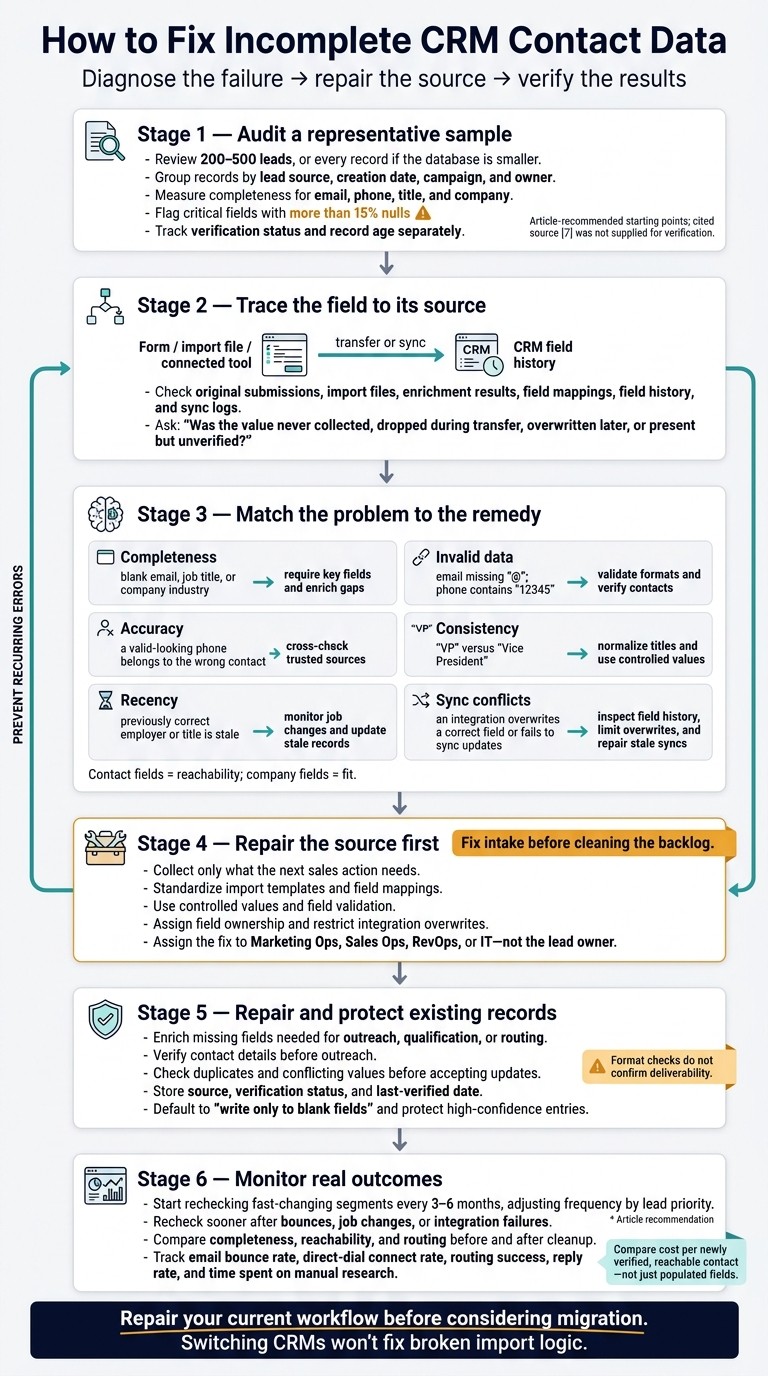
How to Fix Incomplete CRM Contact Data
Your CRM Is a Data Graveyard - Here's How to Fix It
Identify the type of contact-data problem
Classify each field’s problem before fixing it: missing data needs enrichment, invalid data needs validation, wrong data needs correction, and sync errors need repair. A CRM that updates itself prevents lead records from having blank, incorrect, stale, or out-of-sync fields.
Problem | What to look for | Targeted remedy |
|---|---|---|
Completeness | Blank email, job title, or company industry | Require key fields and enrich gaps. |
Invalid data | Email missing “@”; phone contains “12345” | Validate formats and verify contacts. |
Accuracy | A valid-looking phone number belongs to the wrong contact | Cross-check trusted sources. |
Consistency | The same role uses “VP” and “Vice President” | Normalize titles and use controlled values. |
Recency | A previously correct employer or title is stale | Monitor job changes and update stale records. |
Sync conflicts | An integration overwrites a correct field or fails to sync updates | Inspect field history, limit overwrites, and repair stale syncs. |
Assess people and companies separately. Check contact fields for reachability and company fields for fit.
After identifying the problem, trace how the record was created or changed.
How contact details go missing or become unusable
Contact details become unusable during capture, entry, or transfer. A form may omit a phone number, an import may map it to the wrong field, or a sync may overwrite it. Trace the affected field from its source to the CRM before choosing a fix.[1][2][3]
Short forms and incomplete imports
Short forms leave some fields blank by design; imports can lose information through incorrect field mapping. A name-and-email form won’t collect phone, job title, or company details, while an import may contain those details but send them to the wrong CRM fields.[1][2][7]
Short forms ask less of visitors but give sales less qualification data. Collect what the next sales step needs, then enrich the remaining gaps after entry.
Source field | Intended destination | What can go wrong |
|---|---|---|
Full name | First name / last name | Incorrect parsing or single-field mapping leaves the last name blank. |
Phone (mobile) | Phone (office) | The number lands in the wrong phone type, so reps call the wrong line or miss direct dials. |
Job title | Seniority / function | Mismatched picklist values break lead routing and territory assignment. |
Company | Account name | Naming variations create duplicate accounts and split history. |
Contact email | A blank or mismatched value from a secondary tool can overwrite the verified email. |
If a field was correct when it entered the CRM but later looks wrong, check manual edits and whether the record is outdated using an AI-native CRM that tracks every interaction.
Inconsistent entry and outdated records
Manual entry introduces title variants, inconsistent phone formats, and placeholders such as “N/A.” Job changes, reassigned numbers, and company changes can also make once-correct details unusable.[1][2][7][8]
Track verification, enrichment, and activity separately: editing a record does not prove its email still works. Distinguish values that were never collected from verified blanks, and compare field history with verification results before replacing a value.[1][2][7][8]
If the source system has the correct details but the CRM does not, check the sync.
Disconnected tools and sync failures
Details may exist in a form or sales tool without reaching the CRM. Check record matching, field mapping, permissions, and API responses to find where the transfer failed.[2][3][8]
Look for rejected updates, failures to match an existing contact, and populated fields replaced with blank values. Use fill-if-empty rules where appropriate instead of allowing every connected tool to overwrite verified information.[2][3][8]
Match incoming people and companies before creating records. Email and company domain are useful starting keys, but review them when identities change.[2][8]
Once you’ve found where the process failed, audit the field by source. You can also ask your CRM to identify these gaps using natural language queries.
Find the root cause in your CRM
Identify where each record went wrong: data was never collected, dropped during transfer, overwritten later, or present but unverified. This tells you whether to fix capture, transfer, enrichment, or maintenance.
Audit fields by lead source
Review 200–500 leads, or every record if your database is smaller. Group them by lead source, creation date, campaign, and owner [7][2]. Compare recent and older groups to separate capture failures from data decay [7][6].
Measure completeness for email, phone, title, and company, and flag critical fields with more than 15% nulls [7]. Track verification status and record age separately so missing data doesn’t get confused with stale data [2].
Trace records back to their source
Compare affected CRM records with form submissions, event files, import files, enrichment results, and connected sales tools to locate the failed step. Check field history, sync logs, and field mappings.
In Salesforce, use field history; in HubSpot, use property history. In K3X, Pipedrive, Zoho CRM, monday CRM, Close, and Attio, check equivalent history and sync views where available. Don’t assume the CRM shows the entire failure path.
Symptom | Verification test | Process owner | Corrective action |
|---|---|---|---|
Critical fields, such as email or phone, are blank | Check records created in the last 30 days for more than 15% nulls [7] | Marketing Ops / Sales Ops | |
The source has a value, but the CRM does not | Compare the CRM field with the original submission or file [3] | RevOps / IT | Fix the mapping and retry failed updates [3] |
A correct value later becomes blank or incorrect | RevOps / IT | Restrict integration writes to protected fields [7] | |
Email is present, but verification is missing | Check verification results and Last Verified Email Date [2] | RevOps | Verify before outreach and suppress invalid addresses [2] |
Older records bounce more often | Compare bounce rates for records aged 0–6 months versus 12–24 months to identify normal data decay [7][6] | RevOps | |
Industry, country, or title values are inconsistent | Run a distribution report for affected fields [7] | Sales Ops | Standardize entries with picklists or controlled values [7][8] |
Assign each fix to the process owner - Marketing Ops, Sales Ops, or IT - not the lead owner. Save the affected field, source record, and integration with each finding [2][7]. Use the source of each gap to select the matching fix in the next section.
Match each contact-data problem to a fix
Fix intake before cleaning the backlog, or the same gaps will return through forms, imports, and syncs [7]. Define a minimum usable record based on the next action, rather than requiring every field. A missing phone number may be acceptable for that step; a malformed email address is not [2].
Choose the fix by failure type - missing, inconsistent, stale, or unsynced - not by record owner.
Contact-data problem | Prevent recurrence | Repair existing records |
|---|---|---|
Missing data at intake | Collect what the next action needs; ask for more on later visits | Enrich missing qualification or routing fields after intake [1][3] |
Data lost in import | Standardize templates, mappings, duplicate checks, and source attribution [7] | Backfill missing critical fields with targeted enrichment [7] |
Inconsistent manual entry | Normalize existing values without changing their meaning [7][8] | |
Outdated records | ||
Broken syncs |
Improve forms, validation, and imports
Require only the details needed immediately, and ask for more on later visits [3]. Too many required fields can lead to bad answers: 37% of staff admit to entering inaccurate data when faced with too many mandatory fields [5].
Use picklists for country and industry, email syntax and domain checks, and phone-number formatting. Format checks do not confirm deliverability [6].
Standardize import columns and mappings, retain lead source, and validate integration writes - not just form submissions. Match people by email and companies by domain before creating records. Test a small batch, then check rejected records, duplicates, and critical-field completeness [2][7].
Once intake is under control, fill only the fields needed for outreach and routing.
Verify missing details and set sync rules
Enrich fields needed for outreach, qualification, or routing, and set rules to prevent good data from being overwritten. ZoomInfo and Apollo can append details, but coverage gaps remain; use multiple providers when one leaves gaps [9].
Check for duplicates and conflicting values before accepting results. Store the source, verification status, and last-verified date in one place. Default to writing only to blank fields, protect high-confidence manual entries, and assign one authoritative source and owner per field [2][8].
Monitor failed syncs and prevent blank values from overwriting valid data [2][8].
Keep records current and track results
Monitor whether the same problems return after repairs. Start by rechecking records every 3–6 months for fast-changing segments, and adjust the frequency based on lead priority [7][6].
Review records sooner after bounces, job changes, or integration failures. Compare completeness, reachability, and routing before and after cleanup, and track post-cleanup bounce rate, routing success, and reply rate.
Compare K3X with other CRMs for incomplete leads
Compare CRMs by how well they recover, verify, and protect missing fields. K3X can find missing contact details, while most CRMs focus on storing and governing imported data.
Test each platform with the same incomplete lead sample. Compare the fields recovered, how recently the data was verified, integration behavior, and setup effort.
Platform | Missing-contact enrichment and key capabilities | Email and phone verification | Setup requirements | Pricing considerations | Best fit |
|---|---|---|---|---|---|
K3X | Built-in database of 200M+ records, email and phone lookups, buying signals, and prompt-to-action automation | Email verification; direct phone lookup | Configure matching rules and review agent actions | $399/month for unlimited seats; 400,000 monthly credits; metered actions | Prospecting-heavy teams |
Salesforce | Validation rules and duplicate management; enrichment usually requires third-party tools or higher-tier add-ons | Typically third-party | More admin work for rules, permissions, and integrations | Platform edition, add-ons, and third-party fees | Strict data governance |
HubSpot | Lead-capture forms and marketing automation; Breeze enrichment depends on plan entitlements | Typically third-party | Configure properties, forms, and automation | Plan and enrichment usage limits | Inbound and marketing-led teams |
Pipedrive | Pipeline management; deeper enrichment usually requires external services | Typically third-party | Simple pipeline setup; enrichment requires mappings | CRM tier plus provider costs | Small sales teams |
Zoho CRM | Extensive suite customization; enrichment options may depend on the broader Zoho stack | Typically third-party | Configure fields, automation, and suite connections | Edition and integration costs | Teams using the Zoho suite |
monday CRM | Visual workflows and customizable fields; enrichment usually comes from connected apps | Typically third-party | Configure boards, fields, triggers, and mappings | Plan, automation, and app limits | Teams that prefer visual workflows |
Close | Calling, email, and activity tracking; enrichment generally comes through integrations | Typically third-party | Connect providers and define field mappings | Plan plus enrichment-provider costs | Outreach-focused teams |
Attio | Flexible data model; native enrichment for supported fields | Typically third-party | Define attributes, matching, and overwrite standards | Plan and usage entitlements | Teams that prioritize data modeling and enrichment |
K3X: Built-in prospecting and prompt-to-action automation
K3X fits teams that need their CRM to find missing data and act on it, rather than just store contacts. Its built-in database of 200M+ records supports email and direct-phone lookups, email verification dates, and buying signals.
Prompt-driven agents can collect data and update CRM records, reducing reliance on separate enrichment tools. Credits apply to reveals, AI actions, calling, and texting.
Salesforce, HubSpot, Pipedrive, and Zoho CRM
These CRMs differ in data governance, admin workload, and reliance on add-ons. Salesforce offers strong validation and duplicate management but takes more administration; enrichment and verification usually require external tools or add-ons.
HubSpot combines lead capture with plan-dependent Breeze enrichment. Pipedrive keeps pipeline setup simple but generally needs external enrichment, while Zoho CRM offers deeper customization with enrichment options tied to its broader stack. Check native field coverage, required add-ons, and verification gaps.
monday CRM, Close, and Attio
monday CRM focuses on visual workflows, while Close focuses on communication; both generally need connected providers to fill missing contact details. Attio offers native enrichment for supported fields, reducing that reliance, but coverage does not guarantee every email, phone number, or title.
When comparing these platforms with K3X’s built-in prospecting database, check which fields each recovers natively and which require external services.
Compare the cost of fixing contact data
Compare the full cost of repairing incomplete leads in each CRM, not just subscription fees. Once you know where records go missing, account for enrichment, verification, AI data sync repair, communications, setup, and recurring administration.
The table compares starting prices, billing models, and add-ons that can affect total cost.
Platform | Starting price | Plan type and included features | Usage limits and add-ons |
|---|---|---|---|
K3X | Adaptive plan: $399/month | Flat team subscription; unlimited seats and 400,000 monthly credits | Credits cover contact reveals, AI execution, calling, and texting. |
Salesforce | Confirm current rates | Per-seat editions; validation and duplicate management | Budget for enrichment providers, data tools, and integration administration. |
HubSpot | Confirm current rates | Per-seat plans; forms and plan-dependent Breeze enrichment | Check enrichment entitlements and data-sync costs. |
Pipedrive | Confirm current rates | Per-seat plans; pipeline management | Budget for external enrichment and required automation access. |
Zoho CRM | Confirm current rates | Per-user plans; customizable fields and automation | Check enrichment availability, credits, and integration costs. |
monday CRM | Confirm current rates | Per-seat plans; visual workflows and customizable fields | Check enrichment-app costs and automation and integration limits. |
Close | Confirm current rates | Per-seat plans; calling, email, and activity tracking | Budget for enrichment providers and communication usage. |
Attio | Confirm current rates | Per-seat plans; flexible data model and supported-field enrichment | Check enrichment entitlements, usage, and record limits. |
Prices are in USD. K3X charges a flat team price. Confirm competitor rates on current vendor pricing pages, since plans, add-ons, and usage limits change.
K3X subscription and credit costs
K3X bundles contact reveals, AI execution, calling, and texting into its 400,000-credit monthly allowance. Optional top-up packs start at $99 for 100,000 credits.
Top-up credits roll over while the plan stays active. If credits run out, CRM access remains available, but credit-based actions pause.
That makes K3X roughly $79.80 per person for a five-person team, with billing still flat.
Use these costs to compare repairing your current stack with replacing it.
Choose based on workflow fit and total cost
Run a pilot using a representative sample of incomplete records in each shortlisted tool. Measure cost per newly verified, reachable contact, qualification time saved, and sync failures - not just the number of populated fields.
Track subscription charges, enrichment spend, communication usage, setup hours, and recurring administration hours. Use “fill if empty” rules to protect high-confidence data and reduce repeat enrichment [2].
Choose the platform with the lowest total cost for the work you need automated. Before switching, compare repairing validation rules or field mappings in your current CRM with the added costs of migration, testing, and training.
Next steps before cleanup or a CRM switch
Use the field audit and cost comparison to decide whether to clean up your current CRM or migrate without losing data. Repair the source first when email, phone, job title, or company data is missing. Consider a full migration only when the CRM’s structure prevents reliable fixes - for example, repeated overwrites you can’t trace [7].
Start with a representative sample from one active lead source. Trace missing data to forms, imports, or integration overwrites to see whether fixing the source will solve the problem [5][8][7].
Fix the source failure, then test enrichment on the sample [7][4]. Add a last-enriched timestamp to each record and compare enriched records with an unenriched control group using email bounce rate and direct-dial connect rate [7][5][4]. Also track lead-to-opportunity conversion and time spent on manual research [2][1].
If migration remains the better option, document every field before moving data. Build a mapping document that lists each source field, its destination, and its transformation rule [8]. Preserve activities, opportunities, and custom objects, then run a pilot before moving the full database. Check connected tools for missing fields and unexpected overwrites [8][7].
If the pilot doesn’t settle the decision, compare vendors against the specific failure you found. Evaluate K3X alongside Salesforce, HubSpot, Pipedrive, Zoho CRM, monday CRM, Close, and Attio for verified contact data, fewer sync failures, and less admin work. Weigh total cost, data controls, and setup effort; switching CRMs won’t fix broken import logic.
FAQs
Which incomplete leads should I fix first?
Prioritize leads by sales impact, not by how many fields are blank. Choose the 3–5 fields needed for routing, scoring, and qualification, such as verified work email, company domain, and job title. Focus on records missing those fields, especially leads in active sales.
Validate forms and imports first to prevent new gaps. Then use waterfall enrichment to fill missing data in bulk, and deduplicate the records afterward. Skip blanks that don’t block the next sales step.
How can I resolve conflicting contact details?
Set one source of truth for each field, and record where each value came from and when it was last verified. Resolve conflicts by filling only empty fields or giving priority to the most recent, highest-confidence source. Prefer live sources over static snapshots.
When merging duplicates, keep the record with the most complete fields and recent activity. Log every merge so you can track its effects on downstream systems.
How can I enrich leads without compromising privacy?
Put consent and data governance first [1][2]. Store applicable GDPR, CCPA, and PECR consent flags alongside contact data, and respect those flags when using the data [1]. Apply a fill-if-empty rule to populate blank fields without overwriting manual entries [1].
For sensitive fields, record each value’s source and verification date to support audits [1]. Choose a reputable enrichment provider, and enrich only the fields needed for routing, sequencing, or reporting [1][3].