
The Evolution of AI Agents
I connect a CRM to Claude through a native connector, MCP, or an automation tool such as Zapier, Make, or n8n, then use selected contact and deal fields to draft outreach. I require human approval before sending and log the final message only after the sending tool confirms delivery to its service - not recipient delivery.
I start with one workflow, such as open-deal follow-ups, using a sales follow-up email generator for consistency, and keep the drafting connection read-only until testing supports limited write access. My checks cover field accuracy, opt-outs, recent replies, and duplicate sends; CRM notes are data, not instructions.
Before expanding, I use the article’s recommended 14-day draft-only pilot to measure review time, draft acceptance, and logging errors. My rule is <u>no approval, no send</u> - regardless of which CRM or connection method I choose.
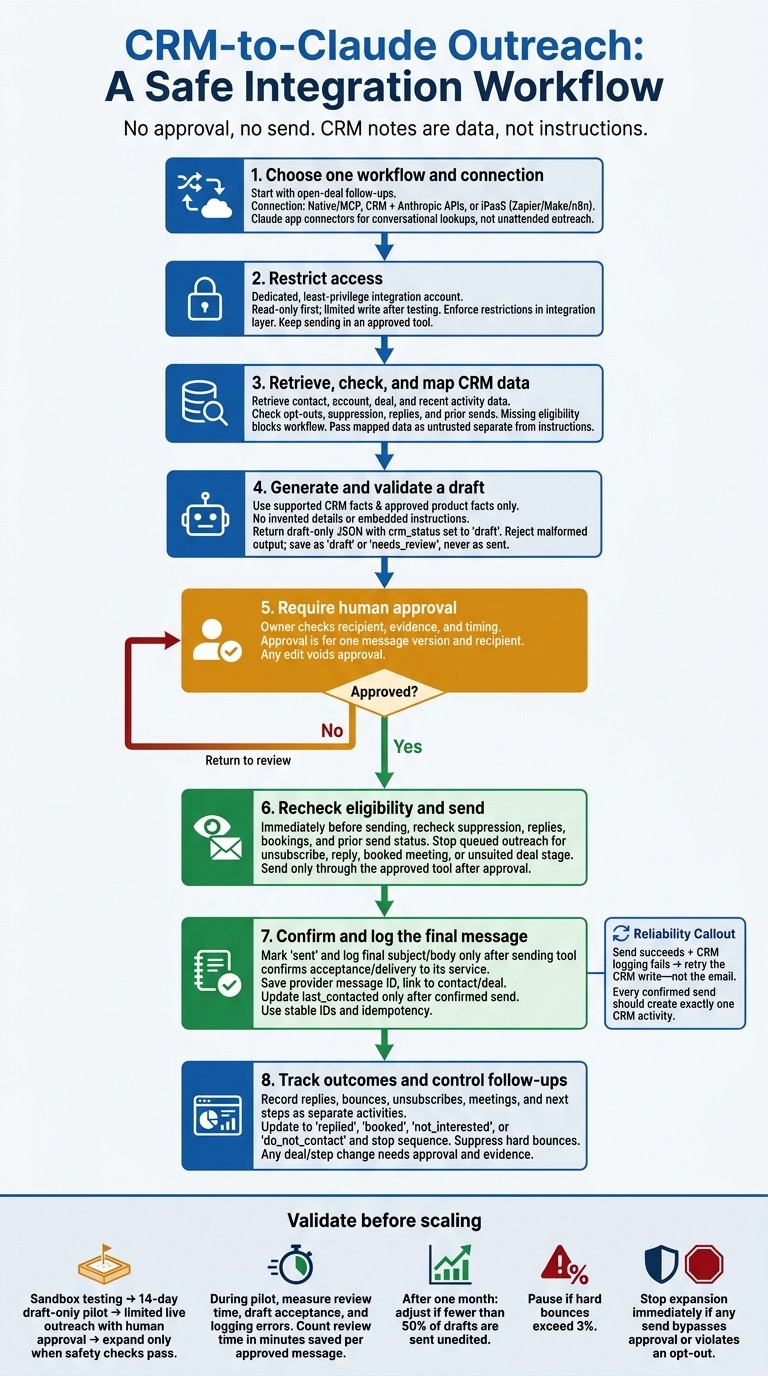
CRM-to-Claude Outreach: A Safe Integration Workflow
Claude Controls My CRM (10 Use Cases FULL TUTORIAL)
Choose a CRM-to-Claude Connection Method
Choose a connection based on where outreach starts: inside Claude, from a CRM event, or through an automation layer. K3X’s native MCP connection suits rep-led work in Claude; CRM and Anthropic APIs support event-driven workflows without a chat session.
Use Zapier, Make, or n8n for a no-code path. Claude app connectors are for conversational lookups, not unattended outreach.
If you’re considering K3X, compare connector depth, setup effort, and usage limits with Salesforce, HubSpot, Pipedrive, Zoho, monday.com, Close, and Attio.
Factor | Native connector or MCP | CRM + Anthropic APIs | Zapier, Make, or n8n |
|---|---|---|---|
Best fit | Sales rep searches and updates inside Claude | Event-driven automation without a chat session | Cross-app outreach workflows |
Setup and control | Authentication setup and limits on which tools the connector can use | Custom mappings and action controls | Triggers, mappings, and approval branches |
Maintenance | Vendor-managed upkeep or custom MCP maintenance | Code, hosting, and monitoring | Workflow upkeep and connector changes |
Cost drivers | CRM + Claude plans | Model usage + hosting | Automation + model charges |
Use a Native Connector or MCP Connection
Check Claude.ai Settings → Connectors and the CRM’s connector docs for authentication requirements, permissions, and available tools. Start with read-only access, and add write access only after testing the workflow.
Use a least-privilege integration user rather than a system administrator account. Don’t assume the connector can send outreach emails or log activities unless its tool list explicitly includes those actions.
Once connected, restrict access to the minimum tools needed before mapping fields into prompts.
Connect Through CRM and Anthropic APIs
Use APIs when a CRM event needs to start a workflow without an active Claude chat. This path also supports field mappings, approval gates, and activity logging in a custom workflow.
Register the CRM API client and configure OAuth or scoped private app credentials. Store secrets in environment variables or a secrets manager - not in .mcp.json.
Use Zapier, Make, or n8n
Use an automation layer to pass CRM data to Claude for drafting. In Zapier or Make, save the output as a Gmail draft or send it to Slack for review rather than sending the email immediately.
Check supported CRM triggers and usage limits before selecting a platform for higher-volume outreach. Build the workflow in this sequence:
CRM trigger → field lookup → Claude draft → human review → send after approval → CRM update
Compare K3X With Other CRMs for Claude Outreach
Compare CRMs by how much outreach work they can automate natively once you’ve chosen a connection method. K3X suits teams that want prospecting, drafting, and CRM updates in one workflow. Salesforce offers stronger governance, while HubSpot is strongest for combined marketing and sales workflows.
Before buying, confirm connector availability, required plans, and contract terms.
Compare Connection Features and Setup Work
K3X combines drafting and actions in one workflow; Salesforce, HubSpot, and other CRMs usually require more setup to achieve the same result. Connector access alone does not include email sending, sequences, or approval controls.
CRM | Claude connection path | Outreach tools | Setup burden | Pricing or usage limits |
|---|---|---|---|---|
K3X | Native MCP; webhooks | Prospecting, drafting, follow-ups, email, calling, and texting | Configure AI context and review steps | $399/month, unlimited seats, 400,000 monthly credits; top-ups from $99 for 100,000 credits |
Salesforce | Hosted MCP through Agentforce | CRM context and actions; sales-engagement tools may be separate | Configure profiles, permission sets, field-level security, and sharing rules | Hosted MCP requires Enterprise Edition or higher, typically $165+/user/month[5] |
HubSpot | MCP connector | Record and activity updates; advanced outreach depends on the Sales Hub tier | Map contacts, companies, deals, and activities | Advanced outreach often requires Sales Hub Professional or Enterprise[5] |
Pipedrive | Official MCP server | Lead qualification and pipeline maintenance | Map people, organizations, deals, and activities | Sequence tier and automation limits |
Official MCP server | Record management and multi-step workflows | Configure module permissions and workflow rules | Edition, API quotas, and outreach requirements | |
monday.com | Anthropic-verified connector | Board-based outreach tracking and workflows | Map board columns, owners, and statuses | Plan, minimum seats, and automation allowances |
Close | Partner MCP or custom API | Calling, email, and outreach workflows | Check middleware scopes and activity mappings | Workflow tier, seat costs, and calling/SMS charges |
Attio | Partner MCP or custom API | Custom record context and enrichment for drafts | Map objects, attributes, and relationships | Seat pricing, API limits, and enrichment allowances |
Map Claude output to each CRM’s native activity object, rather than a generic notes field.
Compare Pricing and Usage Limits
K3X Adaptive costs $399/month for unlimited team seats and 400,000 monthly credits. Optional top-ups start at $99 for 100,000 credits.
AI actions, calling, texting, and contact reveals use credits. When credits run out, those actions pause, but CRM access remains available. The 7-day trial follows a 1:1 demo and requires no credit card.
For Claude outreach, spending depends on seat costs, AI credits, automation limits, and admin overhead. Compare the full cost: CRM tier, billing term, seats, add-ons, Claude usage, automation, and admin time.
Claude API billing is separate from Claude app subscriptions. The supplied Sonnet 4 rates are $3 per million input tokens and $15 per million output tokens.[4] Verify current vendor pricing before purchase.
After choosing a CRM, set permissions and approval rules before drafting outreach.
Set Permissions and Protect Customer Data
Connect Claude through a dedicated, least-privilege integration account or scoped private app - not a system administrator login - before mapping fields or drafting outreach. Keep test and production credentials separate, and test with synthetic records in a sandbox. Store secrets in a credential manager or environment variables, never in prompts or checked-in config files.[1][7]
Keep sending in an approved sending tool, and have a human review drafts before they go out.[1][7]
Limit CRM Access to Required Actions
Give the integration access only to the contacts, accounts, activities, and personalization fields it needs. After testing, permit only approved draft, task, and activity updates.[1][6]
Block deletion, bulk exports, permission changes, and unsupervised sending in the integration layer, not just in Claude’s instructions.[1][6]
Salesforce uses Profiles, Permission Sets, and Field-Level Security; HubSpot uses scoped app permissions; Zoho uses role and module permissions. For API-token-based connections, verify token restrictions and enforce any unsupported object or action limits in the integration layer.[1][7]
Check Data Privacy and Outreach Eligibility
Send only the fields needed for personalization. Leave out Social Security numbers, credit card details, credentials, and irrelevant internal notes.[4]
Review the data terms for Claude and every intermediary. Anthropic API inputs and outputs are not used for training by default, and retention is typically 30 days unless eligible zero-retention arrangements apply.[4]
Check outreach eligibility against opt-outs and suppression lists. Manage unsubscribes and physical-address requirements in the sending tool, and review applicable CAN-SPAM obligations.[6]
Set deletion rules for prompts, drafts, and automation logs. Keep CRM-linked audit records for the source record, reviewer, approved message edit, and send outcome.[6]
Map CRM Fields Into Claude Prompts
Map CRM fields to a small, consistent set of prompt variables and ask Claude to return a draft only. Keep field mapping separate from writing instructions so field-name changes don’t require prompt edits, and use the same mapping for first-touch and follow-up drafts.[6]
Choose Fields for Personalization
Use a standard field map across outreach drafts, but check each CRM’s actual properties and suppression rules. Missing optional values become null; missing eligibility or owner information blocks the workflow.[6]
Use this synthetic test record: Alex Rivera, Founder at SolarStream Solutions, a renewable-energy business with a manual sales-ops data-entry pain point.
Source field to map | Prompt variable | Personalization purpose | Status | Privacy treatment |
|---|---|---|---|---|
|
| Personal greeting | Required | PII; mask in logs |
|
| Role-specific relevance | Required | Professional data |
|
| Company context | Required | Business context |
|
| Industry-specific language | Optional | Public/firmographic |
|
| Small-team context | Optional | Public/firmographic |
|
| Timely outreach trigger | Optional | Public/signal |
|
| Funnel-appropriate tone | Required | Internal only |
|
| Reference past timing | Optional | Internal activity data |
|
| Continue an existing discussion | Optional | Untrusted context |
|
| Address the problem | Optional | Untrusted context |
|
| Approved sender identity | Required | Internal only |
|
| Block ineligible outreach | Required | Restricted |
For Salesforce, HubSpot, or Pipedrive, map the actual object properties to these variables. Apply the same approach to K3X, Zoho, monday.com, Close, and Attio, without assuming their field names or suppression rules match.
Claude should omit personalization when an optional value is null, not guess. Normalize dates to America/Chicago, but keep date-only fields as dates rather than converting them to timestamps.[6]
Define the Prompt and JSON Output
Store the playbook in trusted system instructions or a version-controlled SKILL.md, and pass the mapped record separately as untrusted JSON. Supply only approved product facts; without them, Claude must not invent K3X capabilities, pricing, savings, or customer results.[2][6]
Use a fixed prompt template to keep drafts consistent when they use the same CRM fields.
Validate before saving: accept only the keys shown below. Require strings for subject and body, arrays for the two audit fields, a valid YYYY-MM-DD date or null, and the literal status "draft".
Reject malformed output rather than silently repairing it.[6] Keep write access behind human approval.
Reuse this structure for follow-up workflows and stop rules.
Build First-Touch and Follow-Up Workflows
Turn mapped CRM fields into a retrieve → draft → review → send loop. Check contact status, activity history, and suppression flags before each draft and again before sending. Keep draft generation separate from send approval. [2][6]
Start with the first message in the sequence.
Draft a Personalized First-Touch Email
When a rep selects a contact, use the CRM field map to retrieve contact, account, and recent activity data, including emails, call notes, or transcripts when available. Have Claude draft from that CRM context - not memory or a generic template. [2][6]
Use only growth signals recorded in the CRM, and tie every claim to a field or quote. Save the message as draft or needs_review, never as sent. [2][6]
Give the drafting integration only the access it needs. If you can’t enforce draft-only writes, keep the connector read-only and send drafts to a separate review queue.
Draft Follow-Ups and Enforce Stop Rules
Apply the same record checks to automated follow-ups after the first send. Before drafting, retrieve the previous approved message, last send date, latest inbound message, and current deal stage. [2][6]
Add new information only when the record supports it; otherwise, draft a short reminder. Treat email opens as weak signals, not proof of intent. [2][6]
Stop queued outreach when a reply needs attention, a meeting is booked, or an unsubscribe or do-not-contact flag appears. Also stop when the deal stage changes and the sequence no longer fits. [2][6]
Require Human Approval Before Sending
Route each draft to needs_review so the owner can check the recipient, evidence, and timing. Tie approval to one message version and recipient; any edit must void that approval. [2]
Immediately before sending, recheck suppression flags, replies, bookings, and prior send status. Mark the message sent only after confirmation. Then, when the corresponding outcome occurs, update the CRM to replied, booked, not_interested, or do_not_contact and stop the sequence. [2]
Log Messages and Outcomes in the CRM
Log the final message in the CRM only after a confirmed send, and save Claude’s draft separately. Approval does not confirm that an email was sent. Use Zapier, Make, or a custom integration to write the sent message to the same contact or deal record used for drafting. [2][4][8]
If reviewers work in Gmail drafts, write back the approved, sent subject and body, plus the email provider’s message ID - not Claude’s draft. Use the logged outcomes to set the next sequence state as part of your sales pipeline management. [2][5][11]
Record Activities and Schedule Next Steps
Update last_contacted only after a confirmed send. Record replies, bounces, unsubscribes, meetings, and next-step dates as separate activities, then use their statuses to advance, pause, or stop the sequence. Flag hard-bounced addresses for suppression, but keep their bounce activity records. [2][6]
Use stable record IDs and check for duplicate writes with idempotency checks before creating each activity. If sending succeeds but CRM logging fails, retry the CRM write - not the email. [6]
Keep factual events separate from AI-generated next-step suggestions. A reply can trigger a follow-up task, but any deal-stage or next-step change requires approval and supporting evidence, such as a message or transcript excerpt. This keeps the activity timeline accurate and prevents AI guesses from changing the record. [6][8]
Test the Integration and Measure Results
Test whether the workflow is safe to scale once it logs messages and outcomes correctly. Start with sandbox testing, run a 14-day draft-only pilot, then move to limited live outreach with human approval. Expand only when drafts stay grounded in CRM facts, stop rules work, and every confirmed send creates exactly one CRM activity. [6][7]
Test Safety and Reliability Before Launch
Run write operations against test data in a Salesforce Sandbox or a HubSpot Developer/Test account before launch. Test field mapping, missing fields, conflicting records, opt-outs, recent replies, expired credentials, API failures, and prompt injection in CRM notes. [1][6][7][10]
Confirm that CRM fields map correctly into drafts and that stop rules block unsafe sends. Claude must treat notes as data, not commands, and must not invent missing details. Use these failure cases to set your launch criteria. [1][6][7][10]
Verify that the drafting system can save drafts but cannot send on its own. Simulate a successful send followed by a failed CRM write, and check that recovery produces one CRM activity, no duplicate writes, and no resend. During the draft-only pilot, check every proposed update against its supporting CRM value or transcript quote. [2][6][9]
Measure Time Saved and Total Cost
Compare manual and automated groups over the same period, counting review and correction time when measuring minutes saved per approved message. Track draft acceptance, unsupported claims, duplicate sends, bounces, replies, and meetings booked. [6]
Adjust the workflow if fewer than 50% of drafts are sent unedited after one month, and pause if hard bounces exceed 3%. Stop expansion immediately if any send bypasses approval or violates an opt-out. [6]
Measurement | K3X-first approach | Existing CRM approach |
|---|---|---|
Admin time per approved message | Track time spent mapping fields, reviewing drafts, correcting errors, and reconciling logs. | Track the same tasks in Salesforce, HubSpot, Pipedrive, Zoho CRM, monday.com, Close, or Attio, including automation maintenance. |
Cost per approved message and booked meeting | Divide subscription, Claude usage, automation, enrichment, and administration costs by the number of approved messages and booked meetings, respectively. | Use the same calculation, including CRM seats, add-ons, setup, and maintenance. [3][7] |
Budget API, automation, and enrichment fees separately. Choose K3X when measured results show less administration; keep your existing CRM when its workflow fits better. For either option, verify that field mapping, approval, and logging cut manual work without increasing errors. [3][5][6][7]
FAQs
How can I prevent two reps from contacting the same lead?
Require human approval before sending. Claude should draft messages, not send them automatically [1][2]. Save drafts in a shared workspace or email client so your team can review pending outreach before sending [2].
Before drafting, have Claude check the CRM’s lead status and ownership fields. It should draft only for leads assigned to that rep [3][2]. Keep ownership rules clear so routing stays deterministic and auditable [3].
What happens to queued drafts if I disconnect Claude?
Drafts saved to your email client or CRM stay unchanged when you disconnect Claude [1]. Disconnecting revokes Claude’s access to your credentials and blocks future automated actions. It does not delete or change drafts already saved to your account [1].
These integrations use a human-in-the-loop process: Claude saves drafts in an external system, such as Gmail or your CRM’s draft folder, and stops there [2][1].
How can I verify Claude only accesses approved CRM fields?
Use a dedicated integration user with least-privilege permissions, not an administrator account. Claude inherits that user’s access. In Salesforce, restrict object and field access through profiles, permission sets, and field-level security. In HubSpot, grant only the required scopes.
Review connector activity in CRM logs and verify that CRM sharing rules restrict access to records the integration user can see. Test with read-only access before enabling write permissions.