The Evolution of AI Agents
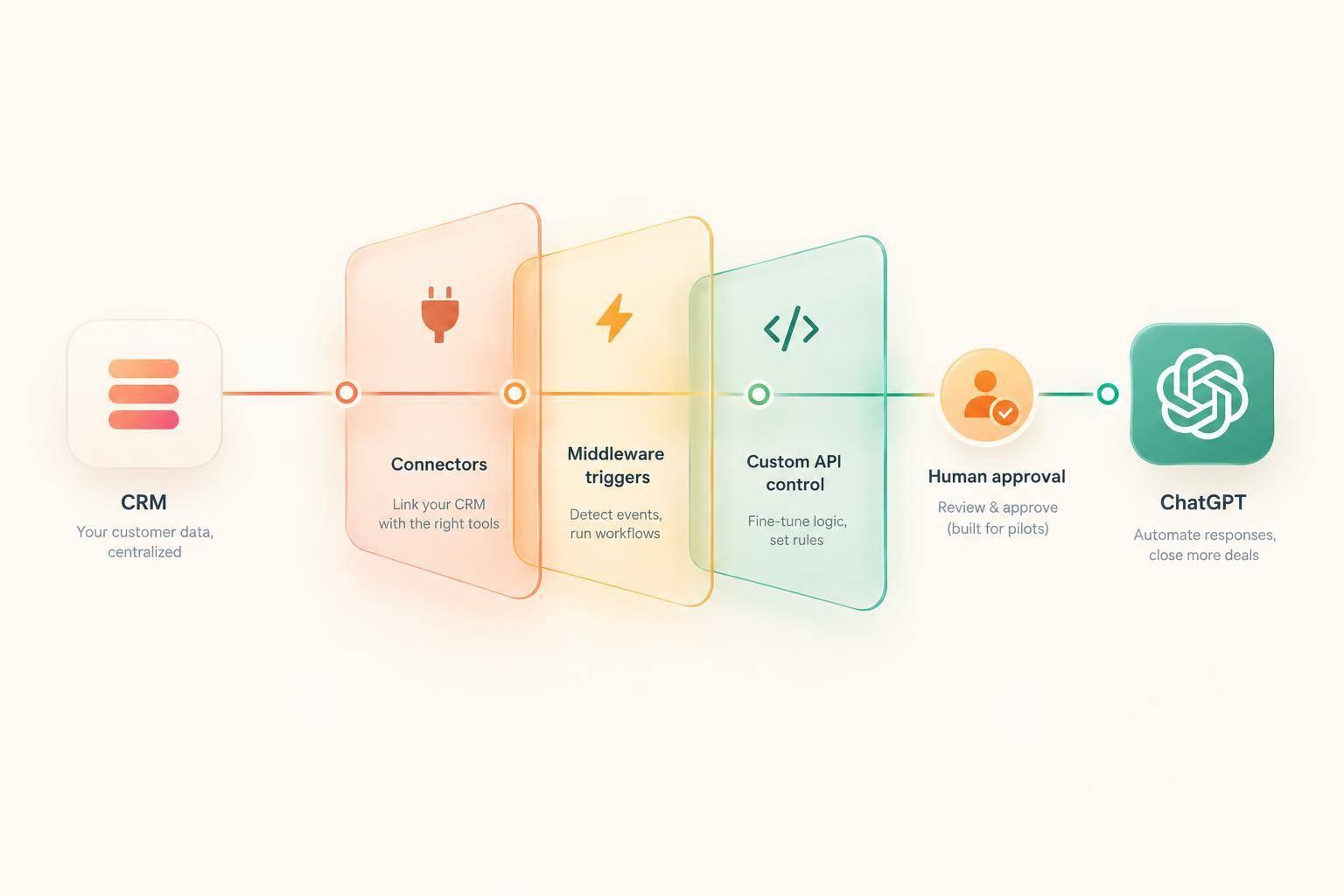
I connect a CRM to ChatGPT through a supported connector, Zapier or Make, or a backend workflow using the OpenAI API. I choose a connector for CRM lookups and reviewed updates, middleware for trigger-based tasks, and custom code when I need more control over permissions and validation.
I start with one review-only task, such as a call summary or follow-up draft, and test it for 2–4 weeks before expanding. I limit the data shared, check results against CRM records, and require <u>human approval before sending customer messages or changing deal stages</u>. ChatGPT subscriptions and OpenAI API usage are billed separately, so I include both when estimating costs. [4][9]

CRM + ChatGPT: A Safe Sales Automation Roadmap
Using ChatGPT with HubSpot: Part 1 (Beginner Friendly)
Connecting these tools helps prioritize sales workflows by automating lead routing and follow-ups.
Step 1: Choose a Connection Method
Choose the method that matches your CRM permissions, approval requirements, and automation volume. Compare the available actions below against what your workflow needs to read, write, and approve.
Key feature | Supported integration or MCP | Zapier or Make | Custom OpenAI API workflow |
|---|---|---|---|
Setup effort | Low; typically a few minutes to authorize access [10] | Medium; usually 1–2 hours to build and test [7] | High; requires development and continued maintenance [9] |
Authentication | Usually OAuth; varies by provider [10] | Private app access tokens or scoped CRM tokens, plus an OpenAI API key [4][9] | |
Read/write access | Read and write, but no deletes; limited by exposed tools and granted permissions [10] | Full read/write, limited by available triggers, actions, and permissions [5][7] | Full read/write control, limited by CRM API capabilities and approved scopes [9] |
Best sales use | Record lookup and quick updates [10] | Complex qualification and high-volume enrichment [9] | |
Pricing | Usually free from the CRM provider, but requires a paid ChatGPT plan [10] | Middleware subscription fees plus separate OpenAI API usage [6][7] | OpenAI token usage plus hosting costs [9] |
Main limits | Web app only; no custom objects; approval controls matter [10] | Task limits and middleware fees [7] | Maintenance work and technical complexity [9] |
Supported Integrations and MCP Connections
Use a supported integration or MCP connection for record lookups and prompt-to-action updates without middleware. K3X supports native MCP access through ChatGPT; check which tools it exposes and which write permissions it grants before enabling updates.
HubSpot’s official ChatGPT connector, built on a remote MCP server, was upgraded on February 23, 2026, to support creating and updating contacts, deals, and tickets [10]. Use the available CRM context to draft follow-ups, summarize activity, and suggest next steps. Once the connection works, move to field mapping and output rules.
No-Code Workflows With Zapier or Make
Use Zapier or Make to generate follow-up drafts, activity summaries, or next-step suggestions through this flow: CRM trigger → field fetch → output generation → validation → save draft or route for approval.
For Salesforce, HubSpot, Pipedrive, Zoho, or monday.com, check the platform’s app directory for the exact trigger and write action. Check Close and Attio the same way; don’t assume they offer the same features.
Multi-step Zaps require a paid plan, while Make offers a free tier for low-volume workflows. Account for task allowances, separate OpenAI charges, and how the middleware handles customer data [5][6][7]. Map only the CRM fields your workflow needs.
Custom Workflows With the OpenAI API
Use custom code when middleware cannot meet your permission, validation, or routing requirements for follow-up drafts, activity summaries, and next-step suggestions. Keep credentials on a backend service, request structured outputs, validate fields, and authorize each CRM write.
Use a backend proxy to handle requests, PII scrubbing, and token management. Add idempotency checks so CRM updates do not trigger the same workflow again. ChatGPT subscriptions and OpenAI API usage are billed separately; a ChatGPT subscription does not cover API automation costs [4][9].
For field mapping, specify which CRM fields the workflow can access, which outputs can write back to records, and which changes require approval.
Step 2: Set Up Access and Map CRM Fields
Grant access only to the CRM objects and actions your workflow needs. After choosing a connection method in Step 1, authorize it with OAuth 2.0 scopes or a private app access token, using a dedicated integration identity for auditing.
Scope access for follow-up drafts, activity summaries, and next-step suggestions. HubSpot sales workflows typically need contact and deal read/write scopes plus schema access [5][9]. Connecting HubSpot to Zapier requires administrator permissions [6].
Then map each trigger to one output and one approval path.
Map Inputs and Set Output Rules
Keep CRM record IDs outside model control so outputs attach to the correct records [6]. Map each action separately to prevent unintended writes [5][9].
Use this table as a template for your CRM fields.
CRM object | Source fields | Data sent to model | Generated output | Destination | Approval |
|---|---|---|---|---|---|
Contact | Record ID, selected contact fields, approved context | Relevant contact details and approved context | Follow-up draft | Custom field or internal note | Review before sending |
Deal | Record ID, stage, approved notes | Stage and relevant notes | Suggested next step | Custom field or task | Review before changing stage |
Activity | Activity ID, associated record IDs, date, approved notes | Relevant activity text and date | Activity summary | Note attached to the original contact or deal | Review before broader sharing |
Require a valid record ID and enough source text for each action. Route incomplete records to review.
Request JSON mode or function calling to return fields such as draft, summary, and next_step. Before writing to the CRM, validate data types, length limits, and allowed picklist values [9]. Store timestamps in ISO 8601 and display them in U.S. format.
Keep Secrets and Unneeded Data Out of Prompts
Remove API keys, OAuth tokens, customer passwords, payment details, and unnecessary personal or confidential data before building prompts [9][11]. Store credentials in managed connections or a backend secret store.
Review access, retention, and logging across the CRM, middleware, and model provider. Keep raw customer payloads out of routine logs.
OpenAI API data is not used for training, but confirm retention and residency controls before processing customer information [12].
Step 3: Build 3 Sales Workflows
Use the mapped fields and approval rules to automate three low-risk sales tasks. Return JSON that matches the schema, use only confirmed CRM facts, and never invent pricing or deadlines. Set requires_review to true for high-impact outputs [1][9]. If supported, set connector write tools to Needs Approval [10].
Draft Personalized Follow-Ups
Generate a draft from selected contact fields and approved context. Trigger it after a completed meeting, a new contact, or a deal-stage change [5][8][7]. Keep it warm, specific, and brief: 3–4 sentences, with personalization based on supplied facts [7].
With HubSpot or Salesforce, Zapier can save generated text as a Gmail draft instead of sending it automatically [5][7].
Check for unsupported facts and sensitive content before approving the draft and writing it to the CRM record. Sending requires separate approval.
Summarize Sales Activity
Generate a summary of goals, objections, and decision-makers using the mapped activity date, approved call transcripts, and CRM notes [5][8]. Run it after calls or meetings, and mark missing details as unknown.
Keep the source activity ID, associated record IDs, and source link. Check claims against those sources before approving the summary and writing it to the mapped CRM record. Log the write so another salesperson can verify what was said.
Suggest Next Steps
Use the mapped deal stage, approved notes, and deal history to suggest coaching notes or tasks when a deal is inactive or stakeholders are missing [1]. Define inactivity thresholds, required qualification fields, and overdue-task handling before generating recommendations.
Return a structured next_step, the matched rule, supporting facts, and missing information. Ask for clarification when the rule cannot be evaluated [1].
Check the recommendation against the rules and send it to the deal owner. Require approval before sending a customer email or changing a deal stage. Write only the approved task or update, and log the recommendation and write-back with the user and connector [1][10].
Step 4: Compare K3X and Other CRMs
Compare K3X and other CRMs using the criteria from Steps 1–3: connector, approval path, field limits, and write-back control. Check how each platform handles follow-up drafts, activity summaries, and next-step suggestions - not just which AI features it offers.
K3X focuses on moving from prompts to actions. Established CRMs offer governance controls but may need more admin work.
K3X: Prompt-to-Action Workflows and Team Pricing
K3X offers native MCP access and agent webhooks for external automation. Its Adaptive plan costs $399/month for unlimited team seats and 400,000 credits; top-ups start at $99 for 100,000 credits, and metered actions pause when credits run out.
For each platform, check whether it can read the objects you need, generate all three workflows, and save the results with approval.
Platform | Connection and write-back route | Setup tradeoff | Cost notes |
|---|---|---|---|
K3X | Native MCP and agent webhooks | Prompt-based actions reduce tool switching; verify permissions and approval controls. | $399/month, unlimited seats, 400,000 credits; optional $99/100,000-credit top-ups. |
Salesforce | Zapier, Make, or custom Apex; native governed AI [13] | Strong governance and customization; advanced routing often needs admins or developers. | Advanced automation usually needs Enterprise/API access, plus middleware and token costs [8][13]. |
HubSpot | Official remote MCP connector with record creation and updates [10] | Direct ChatGPT access with approval settings for write tools; test field limits. | No extra HubSpot connector fee; a paid ChatGPT plan is required [3][10]. |
Pipedrive | Zapier, Make, or custom MCP/API | Pipeline-focused fields make mapping drafts, summaries, and tasks relatively straightforward. | Confirm API access on your plan; middleware costs extra. |
Zia/OpenAI features or middleware/API | Best suited to existing Zoho teams; workflow configuration depends on the plan. | Automation and AI access depend on the plan; confirm add-on costs. | |
monday.com | Middleware/API | Board-and-column mapping suits visual workflows but requires explicit output destinations. | Check monday CRM pricing, not monday work management. |
Close | API or Zapier | Strong communication tools; configure draft approval and record write-back. | Confirm API-key permissions and usage charges. |
Attio | API/custom workflows | Flexible data model; record and relationship mapping needs careful setup. | Confirm automation limits and pricing. |
Test HubSpot’s write tools on one low-stakes record. The connector skips custom objects and some UI validation rules [10].
Verify that your required connector, authentication method, and approval path are available. Staying with your current CRM may be the better choice if Salesforce’s governance, HubSpot’s sales and marketing stack, Pipedrive’s pipeline management, or Zoho’s broader suite already meets your needs.
K3X vs. monday.com, Close, and Attio
Choose monday.com for board-based processes, Close for communication-heavy selling, and Attio for flexible record modeling. K3X reduces tool switching; legacy CRMs usually need more setup to complete the same workflow.
Before comparing total cost, verify supported actions, read/write scopes, and approval steps. Once you choose a platform, test one low-risk record before scaling.
Step 5: Test the Workflow and Set Safeguards
Run a controlled pilot for follow-ups, activity summaries, and next-step suggestions after choosing the connector. Start with read-only access, then update one low-risk record before allowing broader writes. [3][10]
Check Outputs and U.S. Formatting
Before enabling production writes, check that follow-up drafts, activity summaries, and next-step updates write back correctly. Use these pass conditions to test the workflow.
Check | Pass condition |
|---|---|
Triggers and matching | Only intended events run. Include a Search step before creating records to find existing data using unique identifiers, such as email addresses. [6] |
Field types and accuracy | Validate structured JSON, dates, allowed values, and existing product IDs. [4][14] |
Write-back and approval | Save messages as drafts only; route sends to human review. |
Duplicates and loops | Track processed event IDs and exclude updates generated by the workflow itself. [4] |
Retries and failures | Cap retries, handle rate limits, and send unresolved errors to an error queue. [4] |
Test missing fields, stale records, conflicting notes, and malformed outputs. Use en-US formatting for displayed dates and currency amounts, but preserve API-required date formats.
Set Privacy and Human-Review Rules
Give the connector role-based access limited to what it needs. Remove unnecessary personal data and scrub sensitive strings before transmission. Store credentials in AWS Secrets Manager or Azure Key Vault. [4][14]
Confirm encryption, retention, and data-use terms across the CRM, middleware, and AI service. [14] Keep access-controlled audit logs.
Treat notes and transcripts as untrusted input, not instructions. Limit outputs to verified source material and enforce permissions outside the prompt. [14][15]
Require human approval for outbound messages and irreversible actions. [14] Where available, set write tools to Needs Approval so CRM changes require manual confirmation. [10]
Monitor Errors and Plan a Rollback
Track correct-field writes, approvals, duplicates, and failures. Separate failures by type so configuration fixes remain distinct from access or platform limits.
Use exponential backoff with jitter for HTTP 429s and transient failures, with capped retries, alerts, and an error queue. [4] Review connector-attributed audit logs weekly. [10]
Document who can disable triggers, stop queued sends, and revoke access. Test the recovery path before launch; a rollback cannot undo a sent email. [10][16]
Step 6: Choose Whether to Integrate or Switch
Keep your CRM if the tested integration meets your needs at an acceptable total cost. Switch to K3X only if prompt-based workflows reduce setup and maintenance while keeping the features you need.
Cost or capability | Current CRM + middleware | K3X |
|---|---|---|
Subscription | Salesforce, HubSpot, Pipedrive, Zoho, monday.com, Close, or Attio seats, plus any required plan upgrades | $399/month for unlimited team seats |
Workflow setup | Configure Zapier or Make steps, field mappings, and write-back actions; complex workflows may need CRM admins or developers | Prompt-based agents; fewer middleware steps and less CRM admin work |
AI consumption | OpenAI API usage; some connectors also require a paid ChatGPT plan | 400,000 monthly credits; AI actions, contact reveals, calling, and texting consume credits |
Additional usage | Middleware subscription or task/operation charges, plus API usage | Optional 100,000-credit top-ups start at $99 |
Maintenance | Monitor the CRM, middleware, and AI service | Monitor agent actions, credit usage, and connected apps |
Get current vendor quotes for competitor seat prices and API entitlements. Don’t assume every workflow requires a higher-tier CRM plan. [7][10] Native connectors may avoid middleware fees but require paid ChatGPT access. [3][10] K3X can remove middleware for supported tasks, though external dependencies may remain.
Pilot one workflow for 2–4 weeks before expanding. Compare manual work, your existing integration, and K3X with equivalent records and the same review rules. Use the results to compare total cost, review time, and setup effort before switching.
Measure completion time, human-review effort, factual errors, usable outputs, and cost per approved output. Include setup hours, monthly maintenance, and measured K3X credit consumption. [2] If the pilot favors K3X, migrate only the records and automations that workflow needs.
Plan a Low-Risk CRM Migration
Start with a small test import, then move one team or pipeline after checking the results. Keep source access available until you finish reconciling the records.
Inventory the required contacts, companies, deals, activities, custom fields, owners, permissions, and automations. Map source IDs to destination records, then test a small import for duplicates, relationships, timestamps, attachments, and ownership. If you’re moving sales call transcripts, email threads, or support tickets, use summarization to convert them into CRM fields during migration. [9]
Back up the source CRM before cutting over one team or pipeline, and disable overlapping outreach automations. Set rollback triggers for missing history, incorrect ownership, or permission failures. Retain source access until reconciliation is complete. [9]
Conclusion: Start With Routine Tasks
Choose the simplest connection that provides the read/write access your workflow needs. Confirm write support before granting access, and start with tasks people can review. [3][10][11] For teams that want fewer moving parts, K3X keeps prompt-to-action workflows, CRM writes, and logs in one place.
After setting access limits, keep the first outputs review-only. Start with follow-up drafts, activity summaries, and next-step suggestions. Send customer-facing drafts to an approval queue or save them as CRM notes for human review. [1][5][6][8][11]
Once the pilot works, expand write access one rule at a time and limit sensitive data in prompts. Measure time saved, accuracy, and review time - not speed alone. Use a sales productivity checklist to ensure these automated workflows actually reclaim selling hours. Expand automated writes only after outputs match source records and high-impact changes require approval. [1][4][11]
FAQs
How can I prevent AI from overwriting valid CRM data?
Require human approval before saving AI outputs. Keep the CRM as the system of record, and store outputs in dedicated fields, such as notes or AI-summary fields, instead of overwriting core data [1][2][3].
For advanced API workflows, parse AI responses into a strict schema, such as JSON, and check them against predefined rules before saving. Test workflows on sample records and log every AI action to maintain an audit trail [1][3].
What happens if I revoke CRM access mid-workflow?
The step that reads from or writes to the CRM will fail with an authorization or connectivity error. New CRM updates won’t be saved, and downstream steps - such as generating drafts or saving results to CRM fields - won’t complete.
Workflows typically won’t recover automatically. Reconnect the CRM and restore permissions, then rerun the workflow or test to confirm that fields are mapped correctly. [1][2][3][4]
How do I know my automation is ready to scale?
Your automation is ready to scale when a successful pilot shows it works, is safe, and delivers measurable results. Track clear KPIs, such as lead response time or conversion rates, and confirm that outputs meet quality standards consistently [1][2][3].
Before expanding, check that error handling, audit logs, structured validation rules, sensitive data masking, and role-based access controls are in place. Require human approval for high-impact actions, verify CRM data quality, and document and refine your prompt templates [1][3].